Guide
IPTV UK EPG: the 7-day guide, UK time and catch-up
The IPTV UK EPG is the electronic programme guide behind every channel in your player: seven days of listings, set to UK time. Below you will find how to load it with either kind of login, why it can slip by exactly one hour around the clock changes, what to do when the grid stays blank, and how to replay a programme straight from it.
What the IPTV UK EPG gives you
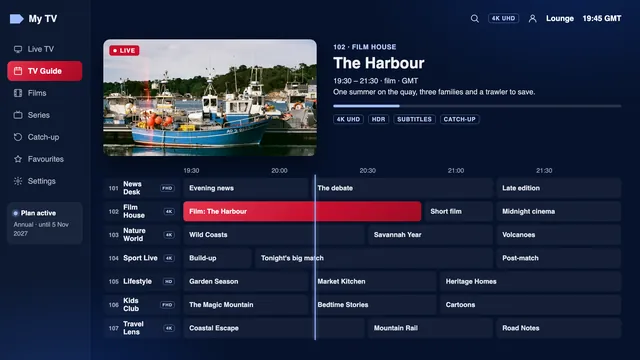
Open the guide and you get a grid: channels down the side, time across the top, and a block for each programme with its title, start and end times and, in most players, a short description. It runs seven days ahead, so you can plan the week’s viewing, and on channels with catch-up it also reaches back into the past few days.
The listings are not part of the video stream. The player downloads them as a separate file, stores them on the device and matches each block to a channel. That is why the guide can be right while a channel is off, or blank while the channels play perfectly, and why a guide fault rarely says anything about your broadband.
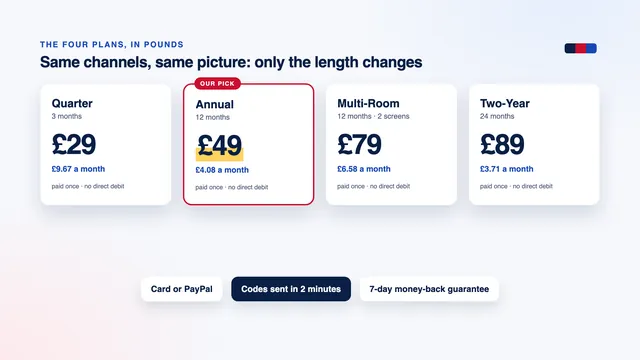
Every plan includes the same guide, along with catch-up and favourites; the four plans differ only in length and number of screens, as the plan cards show.
Loading the guide with the Xtream login
TiviMate, Smarters Pro, XP IPTV and IBO Player all read the guide through the Xtream Codes login, so there is usually nothing extra to type.
- Sign in with the username, password and server URL from your delivery message.
- Let the player finish its first load. On a fast box it takes seconds; on an older stick, allow a minute or two before you open the guide.
- Open the TV guide (it may be labelled EPG or Programme guide) and scroll down a few channels to watch the listings fill in.
- If the grid stays bare, use the player’s refresh or reload option for the guide, or close the app fully and open it again.
- Where the player gives a choice, set the guide to refresh once a day or at each start-up.
That last setting matters more than it looks. The guide covers seven days from the moment it was downloaded, so one fetched last Monday is running out by Sunday, and the final days of the grid go blank until the next refresh.
The first sign-in on each device is covered in more depth on the IPTV UK setup page, and the comparison of players shows which apps draw a full grid.
Using the XMLTV link with an M3U playlist
Your delivery message also holds a TV-guide link in XMLTV format. You only need it in players that load the channels from the M3U playlist and treat the guide as a separate source.
- Kodi. In the settings of the PVR IPTV Simple Client add-on, paste the M3U link in the playlist section and the XMLTV link in the EPG section, then restart Kodi so it reads both.
- TiviMate with an M3U playlist. Add the XMLTV link as an EPG source in the settings if the guide does not appear by itself.
- Other players. Look for a field called EPG URL, XMLTV URL or TV guide source, often in the playlist or account settings.
- VLC. It has no programme guide, so the XMLTV link has nowhere to go there.
Copy the link in one piece. Messages sometimes wrap long addresses over two lines, and a pasted line break or a trailing space is enough for a player to reject it without saying why. The XMLTV address carries your login details too, so it belongs on your own devices and nowhere else.
GMT, BST and the one-hour shift
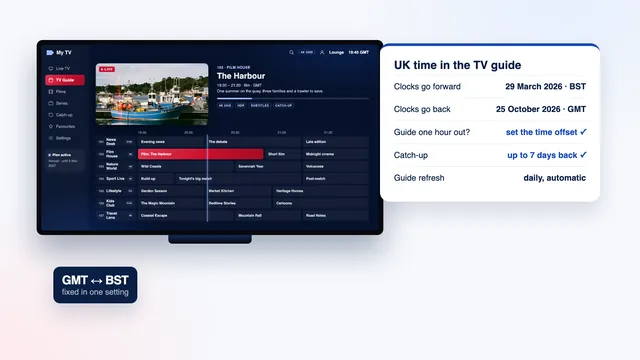
The UK keeps Greenwich Mean Time through the winter. On the last Sunday of March it moves to British Summer Time, one hour ahead (GMT+1), and it returns to GMT on the last Sunday of October. The clocks go forward at 1am in March and back at 2am in October, always in the small hours of a Sunday, and those two weekends are when a guide that was set up by hand tends to go wrong.
| Year | Clocks go forward (GMT to BST) | Clocks go back (BST to GMT) |
|---|---|---|
| 2026 | Sunday 29 March | Sunday 25 October |
| 2027 | Sunday 28 March | Sunday 31 October |
| 2028 | Sunday 26 March | Sunday 29 October |
At the time of writing, in early November 2026, the UK is on GMT until Sunday 28 March 2027.
Why a guide slips by an hour
The guide stores each programme’s time along with its offset from GMT, and the player converts it to the clock of your device. Trouble starts when one side has been fixed by hand: a TV set to a fixed GMT+0 or GMT+1 zone instead of London, a stick still on the time zone of the country it was bought in, or a player where someone added a manual offset months ago. The grid looks right until the next clock change, then everything sits one hour early or one hour late.
The fix, step by step
- Open the date and time settings of the TV, stick or box. Choose automatic time from the network and the London time zone, or an automatic time zone where that is offered.
- Close the player completely and open it again, so it reads the corrected clock, then refresh the guide.
- Pick a programme that starts on the hour and see whether it begins when the grid says. Live streams trail the broadcast by anything from a few seconds to roughly half a minute, so judge the hour, not the seconds.
- If the grid is still an hour out, open the player’s EPG time offset, sometimes labelled timeshift or EPG shift, and move it by one hour in whichever direction lines the grid up with the picture.
- Note what you changed. An offset added by hand stays put when the clocks move, so it will need putting back to 0 at the next change.
When the guide is missing or empty
| On screen | Probable reason | Fix |
|---|---|---|
| « No information » on every channel | The guide has not loaded yet, or the channels came from an M3U link with no XMLTV source | Refresh the guide; with an M3U playlist, add the XMLTV link |
| The last days of the grid are blank | The guide has not been refreshed for several days | Refresh now and set a daily refresh |
| The guide shows the wrong day | The device’s date is wrong, often after a power cut or a reset | Set date and time to automatic |
| Nothing loads and the channels will not play either | The plan has reached its end date, or the login was mistyped | Check the end date in your message; type the login again |
| One or two channels have no listings | Those channels carry no guide data | Normal for part of the list; the channel still plays |
| Listings appear but sit an hour out | Device time zone or a manual offset | Follow the steps in the GMT and BST section |
If the grid stays empty after a refresh, clear the player’s cache. On Android TV and Fire TV, open the device’s settings, go to the list of installed applications, choose the player and select « Clear cache ». « Clear data » is a different button: it wipes the app back to its first-day state, login included, so skip it unless you are ready to type everything again.
On a stick that is almost full, the guide may fail to save at all. Removing apps you no longer use frees the space it needs, and switching the stick off at the wall now and then clears its memory.
Still nothing? Write to the team through the contact page with the player’s name, the device and a photo of the guide screen, and they will work through it with you.
Catch-up straight from the grid
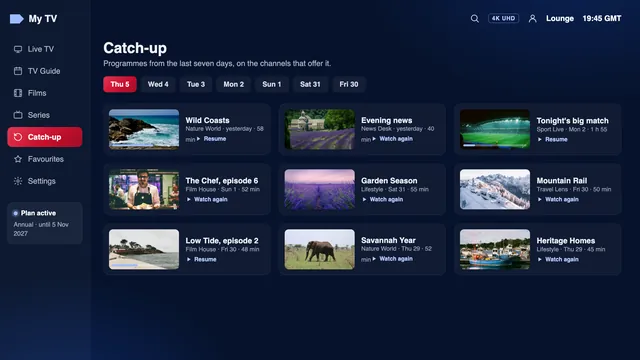
Catch-up lets you play a programme that has already gone out, usually up to 7 days back, on the channels that offer it. Those programmes carry a small clock icon in the grid; some players use a curved arrow instead.
- Open the guide on a channel that shows the catch-up icon.
- Move left, past the current time, to the day and programme you missed.
- Select it and choose play or watch: it starts from the beginning.
- Pause, rewind or skip forward as you would with a recording.
Some players also gather these channels in a « Catch up » menu, sorted by channel and then by day, which is quicker when you know what you want to watch but not when it went out. The archive streams from the server, so it takes no space on your device, but it needs the same broadband as live viewing.
Not every channel keeps an archive, and on some the window is shorter than a week; the icon is the reliable sign. With an M3U playlist, many players show the guide without any catch-up marks, so sign in with the Xtream login if you rely on replays.
Reminders, favourites and recording
Reminders
Players that offer reminders show the option when you select a programme that has not started: a bell icon or an entry such as « Remind me ». At the start time a message pops up over whatever you are watching, and some players offer to switch channel there and then. A reminder lives on the device that set it, so one set on the lounge TV will not appear on your phone. On match days it is the easiest way not to miss kick-off; the guide to live sport deals with the stream itself.
Favourites
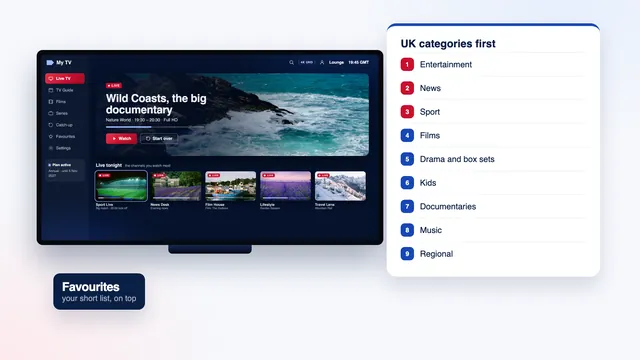
With 40,000+ channels in the list, the full grid is a long scroll. Most players can show the guide for one category, or for your favourites alone, which cuts the scrolling and lightens the load on an older stick. Build that list once, as the guide to the channel list explains, then open the guide from your favourites.
Recording
Recording, where a player offers it (TiviMate does in its premium options), saves a programme to the device’s own storage. For anything shown in the past week on a channel with catch-up, the archive usually makes recording unnecessary. The player guide lists which apps record and which do not.
Keeping the guide right after a renewal or on a new device
A renewal brings a new login. Type it into the player and the IPTV UK EPG reloads with it; if the grid stays empty, delete the old playlist from the player so it stops trying to load listings for the expired one.
On a new device, the guide starts from nothing: sign in, let it load, then check the time zone straight away rather than waiting for the next clock change to find out. Reminders and favourites stay on the old device and need setting again.
If you watch on two screens with the Multi-Room plan, each device keeps its own guide, offsets and reminders; the multi-device guide covers the rest of that arrangement. For prices and what each plan includes, see the plans compared side by side, and for an overview of the access, the IPTV UK 8K overview.
Frequently asked questions
How many days does the IPTV UK EPG cover?
Seven days ahead, in UK time, refreshed by the player from your login. On channels with catch-up, you can also go back up to 7 days and replay what has already been shown.
Why is my TV guide one hour out?
Almost always the device’s time zone or a manual offset in the player, noticed after the clocks change on the last Sunday of March or October. Set the device to automatic time and the London zone, restart the player, then use its EPG time offset if a gap remains.
Do I need the XMLTV link if I sign in with the Xtream login?
Usually not: the Xtream login brings the guide with it. Keep the XMLTV link for Kodi and for any player that loads an M3U playlist and has a separate EPG source field.
Why do some channels show no programme information?
Part of the list carries no listings at all, and those channels still play normally. If a channel that had listings yesterday is blank today, refresh the guide first, then tell the team.
Can I watch a programme I missed yesterday?
Yes, if the channel offers catch-up. Look for the clock icon beside the programme in the grid, select it and it plays from the start, usually up to 7 days after it went out.
Does the guide look the same in every player?
The listings are the same, but the layout is not. TiviMate and Smarters Pro draw a full grid, Kodi shows its own TV guide once the add-on is set up, and VLC shows none at all.