
The login message, open on your phone
Reading it from your phone while you type on the TV saves walking back and forth. Type each field exactly as written: capitals count, and the server address keeps its port number at the end.
Setup
An IPTV UK setup always comes down to two things: a player app on the device, then the login from your message typed into it. Below you will find the route for each family of devices, where the Xtream details and the M3U link go, how the TV guide loads and the few picture settings worth a minute before the first match.
Before you start
Three things make an IPTV UK setup quicker, whatever the device.
Reading it from your phone while you type on the TV saves walking back and forth. Type each field exactly as written: capitals count, and the server address keeps its port number at the end.
Whether it runs Fire OS, Android TV or Google TV, tvOS, Tizen, webOS, Windows or macOS decides which player you can install and from which store.
Check the speed on the TV or stick itself, ideally in the evening: roughly 5 Mb/s for HD, 10 for Full HD and 25 for 4K. A cable to the router, or 5 GHz Wi-Fi in the same room, keeps it steady.
The method
The menus change from one player to the next, but the order of the steps never does.
Take it from the device’s own store wherever possible, and check the developer’s name before installing: look-alike apps carry near-identical names.
On the first screen, pick the option that mentions Xtream Codes, often worded “Login with Xtream Codes API” or “Add playlist › Xtream Codes”. Keep the M3U link for players that offer nothing else.
Username, password and server address with its port, in the form http://your-server:port. A capital typed in lower case, or a space left at the end of a field, is enough to block the login.
Give the first load a minute or two for channels, films and the guide. Open a UK channel near the top of the list and check that the guide shows tonight’s programmes in UK time.
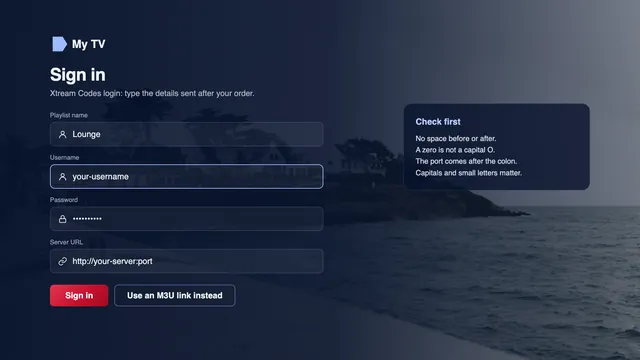
An error at the first attempt is nearly always one wrong character. Compare each field with the message, letter by letter; if it still fails, send the team a photo of the screen.
Which login
Your message carries both forms of the same access. Use the one your player asks for.
| Player | Where it runs | Login to use | TV guide |
|---|---|---|---|
| IPTV Smarters Pro | iPhone, iPad, Apple TV, Macs with Apple silicon, Android phones, tablets and TVs, Fire TV via Downloader | Xtream Codes (M3U also accepted) | Loads with the Xtream login |
| TiviMate | Android TV, Google TV, Fire TV | Xtream Codes | Loads with the login; the XMLTV link can be added |
| IBO Player | Samsung, LG, Android | Playlist linked to the TV’s MAC address or device key | Comes with the playlist |
| Smart IPTV | Samsung, LG | M3U link, sent from the player’s website with the TV’s MAC address | Comes with the playlist; ask us if the grid stays empty |
| VLC | Windows, Mac, Android, iPhone, iPad | M3U link | No grid: channels only |
| Kodi | Windows, Mac, Android boxes | M3U link in the PVR IPTV Simple Client add-on | XMLTV link in the same add-on |
The Xtream Codes login is three fields: username, password and server address. It is the richer route, because the player asks the server for everything at once: live channels sorted by category, the film and series library, the TV guide and catch-up.
The M3U link is a single long address with your username and password built into it. Players that only read playlists use it, and the guide then needs the separate XMLTV link, pasted into the field the player calls EPG or TV guide.
A MAC address or device key appears on the first screen of some TV apps. You enter it on the player’s website together with your playlist, and the TV picks the list up the next time the app starts.
Devices
Each family of devices has its own store and its own quirks. Here is the short route for each; the linked guides cover every menu.
Smarters Pro is not in the Amazon Appstore, so it goes in through Downloader (by AFTVnews), which is. Allow “Install unknown apps” for Downloader under Settings › My Fire TV › Developer options; if that menu is hidden, open About and click the device name seven times. The download link comes with your login. Some recent sticks run Vega OS and cannot add apps from outside the Appstore, so check the model before buying one.
Smarters Pro is in some Samsung (Tizen) and LG (webOS) stores and missing from others, depending on model and country. Two TV apps fill the gap: Smart IPTV, activated once per TV, takes the playlist from its website using the TV’s MAC address, and IBO Player links the playlist to the MAC address or device key. If neither suits, a streaming stick or an Android box on a spare HDMI port does the job.
Install the player from the TV’s own Google Play: TiviMate (free, with paid premium options), IPTV Smarters Pro or XP IPTV. Each takes the Xtream login straight away. Leave alone the APK files passed around on forums: some carry malware, and the store version keeps itself up to date.
Players come from the App Store only; IPTV Smarters Pro and VLC are there at the time of writing. On Apple TV, open Settings › Video and Audio › Match Content and turn on Match Dynamic Range and Match Frame Rate, so HDR menus are not forced and 50 fps sport does not judder. AirPlay from an iPhone works, but a player installed on the Apple TV itself is steadier.
VLC, the free player from VideoLAN, opens the M3U link: Media › Open Network Stream on Windows, File › Open Network on a Mac, then paste the link. It plays every channel but shows no guide grid. On Macs with Apple silicon, IPTV Smarters Pro from the App Store brings the guide and catch-up with the Xtream login.
Kodi reads the M3U link through the PVR IPTV Simple Client add-on, found in the PVR clients section of the add-on browser. Install or enable it, open Configure, set the playlist location to a remote path and paste the M3U link; in the add-on’s EPG section, paste the TV-guide link. Restart Kodi and the channels appear under TV, with the grid filled in.
TV guide
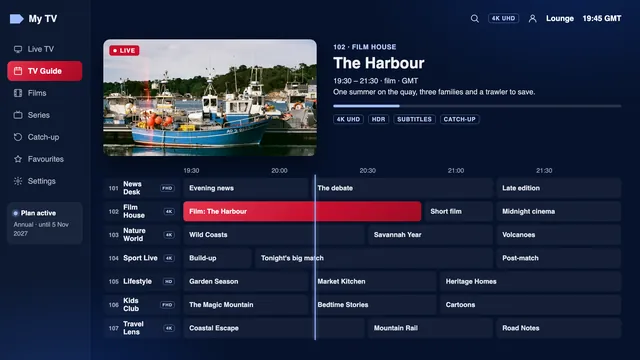
With the Xtream login, the guide arrives on its own: seven days of programmes, channel by channel, in UK time. The first load can take a minute or two; after that, most players refresh it in the background.
In players that read the M3U link, paste the XMLTV address from your message into the field called EPG, TV guide or XMLTV, then run the update from the player’s settings.
The UK moves from GMT to BST on the last Sunday of March and back on the last Sunday of October. If a grid sits one hour out after the clocks change, the player’s EPG time offset or timeshift setting puts it right.
Catch-up lives in the same grid. On channels that offer it, past programmes carry a small clock or arrow icon and open again from there, usually for up to 7 days; some players gather them under a Catch up menu instead. The IPTV UK EPG guide covers the time offset player by player.
Picture
Six settings decide most of what you see. Each takes less than a minute to check.
Leave the player’s decoder on hardware. 4K streams use HEVC (H.265), and decoding that in software makes most sticks and TVs stutter.
On a stick or box connected to a 4K TV, set the video output to 2160p or Auto, using an HDMI 2.0 or later input and a cable rated for it. Some TVs only open a port to 4K HDR once its enhanced or UHD mode is switched on in the input settings.
Turn on frame-rate matching wherever the device offers it, so 50 fps sport plays without judder. Our guide to sport at 50 fps covers the rest of a match-night setup.
Let the device switch to HDR only when a programme carries it. HDR10, HDR10+, Dolby Vision and Dolby Atmos appear when the source offers them and both player and TV support them; Samsung sets take HDR10+ but not Dolby Vision.
If the player has a buffer setting, a medium value absorbs short drops without adding much delay. Raise it a step if the picture pauses for a second now and then.
A cable to the router beats any Wi-Fi. Many TV Ethernet ports run at 100 Mb/s, which is still plenty; where a cable cannot reach, 5 GHz Wi-Fi, powerline adapters or a mesh system help.
A 4K output setting only shows its worth on programmes produced in 4K: the picture always follows the source, and the rest arrives in HD or Full HD.
Troubleshooting
| What you see | Likely cause | What to do |
|---|---|---|
| “Invalid login” or “authorisation failed” | A wrong character, a capital, a space at the end or the port missing from the address | Retype the three fields from the message and check the port |
| Channels load, the guide stays empty | The guide has not refreshed yet, or an M3U player has no XMLTV link | Run the EPG update in the player’s settings; paste the guide link if asked |
| The guide is one hour out | The clocks have moved between GMT and BST | Change the player’s EPG time offset by one hour |
| The picture freezes in the evening | Wi-Fi far from the router, or a crowded line between 19:00 and 23:00 | Restart the router and the player, then move to a cable or 5 GHz |
| HD picture on a 4K TV | A source made in HD, output set to 1080p, the HDMI port in basic mode, or software decoding | Try another 4K programme, then check output, port and decoder |
| “Max connections reached” | Another device in the home is still playing | Close the player on that device and wait a minute |
| Sound but a black screen | The player’s decoder does not suit that stream | Try the player’s other decoder option; tell us which channel |
| The player is missing from the store | Not offered for that model or country | Use Smart IPTV or IBO Player, or a stick on HDMI |
Freezing that comes back every evening needs a closer look at the home network: the IPTV UK buffering checklist takes the causes in order, from the Wi-Fi band to the player’s buffer.
Restart the router and the player before getting in touch. If the problem is still there, send the team the device, the player and a photo of the screen, and the reply can start from where you are.
After setup
Repeat the IPTV UK setup on each device in the home: the lounge TV, the bedroom stick, a tablet for the kitchen. Each one keeps its own favourites and picture settings. With Quarter, Annual or Two-Year, one device plays at any moment, while Multi-Room lets two play together; the plans page sets out the four side by side.
Once the list has loaded, build a short favourites row of the UK channels you actually watch. It turns more than 40,000 channels into a dozen and saves scrolling every evening; how the channel list is organised shows where each category sits.
FAQ
Not from us: IPTV UK 8K charges nothing for setup help. Most players are free to download; some sell optional extras, such as the Premium option in Smarters Pro or the paid features of TiviMate, and Smart IPTV asks for a one-off activation per TV. Prices vary by store.
On Fire TV and Android or Google TV: TiviMate or IPTV Smarters Pro. On Apple TV, iPhone and iPad: Smarters Pro or VLC. On Samsung and LG: Smart IPTV or IBO Player, or Smarters Pro where the store has it. On a computer: VLC.
No. We do not publish or sell any app: the access opens in third-party players such as Smarters Pro, TiviMate or VLC. Apps with names close to ours have no link with us, so always check the developer’s name before installing.
In the player’s Xtream Codes screen, often called “Login with Xtream Codes API” or found under “Add playlist”. Username, password and server address go in their own fields, with the port kept at the end of the address.
Usually a few minutes once the player is installed, plus a minute or two for the first guide load. A Fire TV takes a little longer because Downloader has to go in first, and the second device is always quicker than the first.
The clocks have changed between GMT and BST and the player has not followed. Change its EPG time offset, sometimes called timeshift, by one hour in the right direction.
Yes, on every device in your household. The plan limits how many play at the same moment: one with Quarter, Annual or Two-Year, two with Multi-Room.
Pick a plan, pay once in pounds and your codes leave within 2 minutes. If no picture appears on any of your screens despite our help, the 7-day guarantee refunds you.