Guide
IPTV UK smart TV guide: the right player for Samsung, LG and Google TV

An IPTV UK smart TV set-up needs no extra box: the player runs on the television itself, and the login or playlist from your delivery message does the rest. What changes from one set to the next is the operating system inside, because it decides which players you can install, how the login is linked and which HDR formats the screen can show.
IPTV UK smart TV: start with the system, not the brand
Samsung televisions run Tizen, LG televisions run webOS, and many sets from Sony, TCL and Philips run Android TV or Google TV. The badge on the bezel tells you less than the software menu does. On a Samsung, look under Settings › Support › About This TV (inside All Settings on recent models); on an LG, open About This TV in the general settings; on Android and Google TV, the About page sits in the system settings.
| TV system | Where players come from | Players that read our access | How the login gets in |
|---|---|---|---|
| Samsung (Tizen) | The Apps panel on the home screen | Smart IPTV, IBO Player; Smarters Pro on some models and in some countries | Playlist sent from the player’s website to the TV’s MAC address, or the Xtream login typed with Smarters Pro |
| LG (webOS) | The LG Content Store, called Apps on recent sets | Smart IPTV, IBO Player; Smarters Pro where listed | The same two routes as on Samsung |
| Android TV / Google TV | Google Play on the television | TiviMate, IPTV Smarters Pro, XP IPTV, VLC, Kodi | Xtream login typed on the TV, or the M3U link |
| Other systems | The television’s own store | Whatever M3U or Xtream player the store lists | Often simpler with a stick on HDMI |
Whatever the system, look at the network before anything else. A set two metres from the router on 5 GHz Wi-Fi or a cable behaves very differently from one at the far end of the house. Many TV Ethernet ports run at 100 Mb/s, which is still plenty, since a 4K stream needs about 25 Mb/s. A television with Fire TV built in follows the Firestick steps instead of this page.
Samsung televisions (Tizen)
Press Home, open Apps and use the magnifier to search by name. Recent models may list IPTV Smarters Pro, but that depends on the model year and the country the set was registered in, and an app can disappear after a store change. Smart IPTV and IBO Player are the usual alternatives, and either one reads the same access.
Typing on a Samsung
With Smarters Pro you type the Xtream login on the television, and the standard remote makes that slow. Tizen accepts a USB or Bluetooth keyboard straight away, which turns a five-minute job into thirty seconds. With Smart IPTV or IBO Player nothing is typed on the set at all, as the playlist is sent from a phone or a computer (see the section on MAC addresses below).
Keeping a Samsung responsive
A Samsung that has been in standby for weeks can feel sluggish in apps. Hold the power button on the remote until the logo appears: that forces a full restart rather than the usual quick standby. On recent models, Settings › Support › Device Care › Manage Storage lets you clear an app’s cache without removing the app or its playlist.
LG televisions (webOS)
Open the LG Content Store from the home screen (recent webOS versions simply call it Apps) and search for the player. Smart IPTV and IBO Player are listed on most sets, while Smarters Pro appears on some models and regions only, so check before planning around it.
The Magic Remote makes typing far easier than a button remote, because you point at the keys instead of stepping across them. If your LG came with the basic remote, a USB keyboard works here too.
LG’s Quick Start+ keeps the set half awake in standby, so a frozen app can stay frozen the next evening. If a player misbehaves, switch Quick Start+ off in the general settings, or unplug the television at the wall for a minute.
Linking a player by MAC address or device key
This is the usual IPTV UK smart TV route on Samsung and LG. Smart IPTV and IBO Player do not ask you to type the login with the remote; instead, each television gets an identifier shown on the app’s start screen: a MAC address, and for IBO Player a device key as well. You enter that identifier on the player’s own website together with your playlist, and the set picks it up the next time the app opens.
Smart IPTV
- Install Smart IPTV, open it and write down the MAC address on its start screen, exactly as shown.
- On a phone or a computer, go to the app’s website, using the address printed on that same start screen, and open the playlist upload page.
- Enter the MAC address, paste the M3U playlist link from your delivery message and send it.
- Restart the app on the television. The channel list loads, grouped as in the playlist.
- Smart IPTV asks for a one-off activation per television, paid to its developer; the price is on its website.
IBO Player
- Install IBO Player and note the MAC address and the device key on its start screen.
- On the app’s website, sign in with those two values and add a playlist: the M3U link, or the Xtream details where the form offers them.
- Save, close IBO Player on the television, reopen it and choose the new playlist.
- IBO Player has its own activation terms, set by its developer; read them on its website before you rely on it.
Two details catch people out. The identifier has to come from the app, not from the television’s network menu, because some players use their own. And after a factory reset or a reinstall the identifier can change, so the playlist has to be sent again. The same goes for renewals: a new order brings a new login, which you send to the same MAC address in the same way.
Android TV and Google TV sets
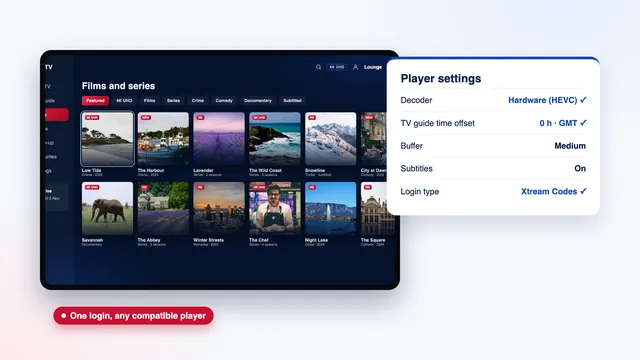
Sets that run Android TV or Google TV are the most flexible, because the players come from Google Play on the television itself. TiviMate, IPTV Smarters Pro, XP IPTV and VLC are all there at the time of writing, and Kodi reads the access through its PVR IPTV Simple Client add-on. On Google TV, search from the Apps tab; on older Android TV menus, open the Play Store app.
TiviMate on an Android television
TiviMate is built around a remote and a big screen. It is free, with paid premium options for extra features. Choose Add playlist, then Xtream Codes, and enter the server URL, the username and the password from your message; the 7-day guide comes in with them.
Stay with the Google Play versions. Installing an APK from elsewhere means allowing an unknown source in the security settings, and files passed round on forums can carry malware. Our side-by-side look at the players sets out the strengths of each one.
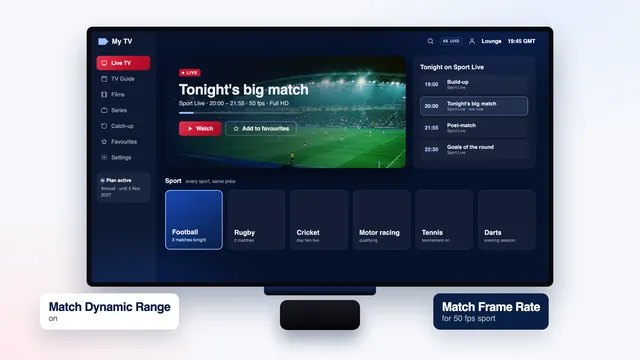
Android sets often ship with modest storage and a slower processor than a recent stick, so the same habits pay off: clear the player’s cache now and then from the Apps section of the settings, and hide country groups you never open. Where your set offers a Match content frame rate option in its advanced display settings, set it to switch whenever the player asks, so 50 fps sport keeps its native rhythm.
HDR on Samsung, LG and Android sets
Pictures go up to 4K UHD (3840 × 2160) where a channel or a title is produced in 4K; the rest arrive in HD or Full HD, as their source dictates. HDR sits on top of that with three conditions of its own: the source must offer it, the player must pass it on, and the television must support that particular format.
- Samsung: HDR10, HDR10+ and HLG, but no Dolby Vision; a Dolby Vision title falls back to HDR10 when the stream carries that layer.
- LG OLED and QNED: Dolby Vision as well as HDR10 and HLG. The picture menu swaps to LG’s Dolby Vision modes as soon as such a source starts.
- Android and Google TV sets: support varies by maker and range, so read the specification sheet for Dolby Vision or HDR10+, and remember the player has to handle the format too.
Most sets flash an HDR or Dolby Vision logo when the format kicks in. If a 4K film looks dull or murky, check the picture mode before blaming the stream, since HDR keeps its own set of modes.
Picture modes for sport and for films
Factory picture modes are chosen to stand out under shop lighting. Two minutes in the picture menu makes evening viewing more comfortable, and each input or app usually remembers its own choice.
| Setting | For live sport | For films and drama |
|---|---|---|
| Picture mode | Standard, or Sports with brightness and colour toned down | Filmmaker Mode, or Movie / Cinema |
| Motion smoothing (Picture Clarity on Samsung, TruMotion or similar on LG) | Low to medium: it keeps the ball and the pitch markings crisp | Off, to avoid the ‘soap opera’ look on 24 and 25 fps films |
| Noise reduction | Low, which tidies lower-bitrate channels | Off or low |
| Brightness and backlight | Higher in a bright room in the afternoon | Lower for an evening in a dark lounge |
| Colour temperature | Standard or the first warm setting | The warmest preset |
| Game or low-latency mode | Off: it switches off the processing that cleans up motion | Off |
On a Samsung, motion settings sit under Picture › Expert Settings › Picture Clarity Settings; on an LG, they live under Picture › Advanced Settings, with names that change from one year to the next. For live sport the frame rate matters as much as the mode, and the guide to sport at 50 frames per second covers the broadband a match needs at peak time and the few seconds’ delay behind broadcast.
When a stick on HDMI is the better choice
The television’s own app is the tidiest IPTV UK smart TV option but not always the strongest. A streaming stick or an Android box in a spare HDMI input earns its place when:
- the player you want is missing from the TV’s store, as with TiviMate on Samsung or LG, since it is an Android TV and Fire TV app;
- the set is several years old, its apps no longer receive updates, or a store change has removed the player;
- long channel lists scroll slowly, because smart TV processors are often weaker than a recent stick’s;
- the TV’s Wi-Fi is poor where it stands and no cable reaches it, whereas a stick with Wi-Fi 6 or an Ethernet adapter copes;
- you would rather not pay a per-TV activation for a MAC-linked player.
A stick never adds an HDR format the television lacks: a Dolby Vision stick on a Samsung still shows HDR10. To get its full picture, switch on the enhanced HDMI mode for that input, called Input Signal Plus in Samsung’s External Device Manager and HDMI Deep Colour (HDMI Ultra HD Deep Colour on older sets) in LG’s HDMI settings. The Apple TV article takes the other common box from unboxing to a working picture.
Each television that plays at the same time counts as one screen. If the lounge set and a bedroom set will both be on during the same evening, Multi-Room covers two screens for 12 months at £79; otherwise one screen is enough, and Annual at £49 is the plan we suggest for a first year. Moving one login between rooms explains the rules, the plans page describes ordering and delivery, and the plan comparison puts all four side by side. For any other screen in the house, the setup overview names the right player, and our IPTV UK home page sums up what every plan includes. If the set still shows nothing, write to our team, available 24/7.
Frequently asked questions
Does a Samsung or LG television need a separate box?
Usually not. Smart IPTV and IBO Player run on most recent Samsung and LG sets, and Smarters Pro on some models. A stick or a box only becomes worthwhile when the player you want is missing from the TV’s store or the set is too old for current apps.
Why does Smart IPTV or IBO Player show a MAC address?
Those apps link the playlist to one television instead of making you type the login with a remote. You enter the address on the app’s website with your playlist link, and the set loads it at the next start. Copy the address from the app’s own screen, character by character.
Is IPTV Smarters Pro available on my smart TV?
On Android and Google TV sets it is in Google Play. On Samsung and LG it depends on the model, the year and the country, at the time of writing. Search the television’s store; if it is not there, Smart IPTV or IBO Player reads the same access.
Will films play in Dolby Vision on my television?
Only when three things line up: the title is offered in Dolby Vision, the player passes it on and the set supports it. LG OLED and QNED models do; Samsung models do not, and use HDR10 or HDR10+ instead. A title without HDR plays in standard range on every set.
Is the 100 Mb/s Ethernet port on my TV fast enough?
Yes. A 4K stream needs about 25 Mb/s and Full HD about 10 Mb/s, so a 100 Mb/s port leaves a wide margin. A cable is usually steadier than the television’s built-in Wi-Fi, especially at the far end of a house.
What if the player vanishes from my TV’s store?
An app already installed normally keeps working, though it may stop receiving updates. If it goes for good, switch to another player the set still lists, or plug in a stick. Our access works in any compatible player, so your plan is unaffected.