Guide
IPTV UK sports: smooth live matches at 50 frames per second

IPTV UK sports viewing is judged in a split second: when a winger breaks down the line or a car brakes hard into a corner, you see straight away whether the picture keeps up. This guide covers what makes live sport look right on our access, from 50 frames per second to steady broadband in the evening rush and the right player and TV settings, plus the delay behind broadcast and what to do when a match starts to stutter.
Why 50 frames per second matters for live sport
Video is a string of still pictures shown one after another. At 25 frames per second each picture stays on screen for 40 milliseconds; at 50 it lasts 20. Halve that gap and a ball moving at speed travels half as far between two pictures, so your eye reads one smooth line instead of a series of small jumps.
Live sport in the UK is mostly produced at 50 frames, or 50 interlaced fields, per second, a rhythm that goes back to the 50 Hz mains supply. On IPTV UK sports channels you get 50 frames per second when the source allows it. Where a channel only carries 25, the picture stays at 25: no player and no TV can bring back frames that were never sent.
Frame rate and resolution are separate things: during a fast counter-attack, Full HD at 50 frames often looks cleaner than a sharper picture at 25, because motion matters more than extra pixels when the camera pans. Bear that in mind when a sport channel appears in the list in more than one quality.
How to check the frame rate
Watch a slow pan along the touchline or the score ticker: at 50 frames the lines and the text glide, at 25 they shudder slightly. VLC on a Windows PC gives the exact figure under Tools › Codec Information; other players often have a ‘stream info’ entry in the playback menu.
Football, rugby, cricket and more: where frame rate shows
Each sport challenges the picture differently. The table shows what moves fastest, what 50 frames per second gives you and the setting that most often spoils it.
| Sport | What moves fast | What 50 fps gives you | Common picture trap |
|---|---|---|---|
| Football | the ball on a long pass, wide pans across the pitch | a round, sharp ball and pitch lines that stay straight | motion smoothing draws a halo round the ball |
| Rugby | wide passes, kicks to touch, a ruck breaking up | tackles and offloads you can follow without blur | Sport mode turns the grass fluorescent |
| Cricket | the ball from the bowler’s hand to the bat in under a second | the seam and the edge of the bat in replays | high sharpness outlines the white kit |
| Tennis | serves well over 100 mph, seen from behind the baseline | the ball as a clear dot, not a smear | interpolation makes the ball double or vanish |
| Motor racing | cars crossing the frame, on-board cameras | readable car numbers and timing graphics in a pan | a 60 Hz output adds a regular hitch |
| Darts | a small dart in flight, then the board in close-up | the exact segment the dart lands in | noise reduction smears the crowd behind the oche |
| Snooker | slow, steady pans across the table | smooth pans over the baize without stepping | a 50/60 Hz mismatch is most visible here |
Snooker deserves a word of its own. Many sticks and boxes output 60 Hz unless told otherwise, and fitting 50 pictures into 60 refreshes shows one picture in every five twice: a regular stepping on the slow, steady camera moves that snooker and cricket coverage is made of. Frame-rate matching, further down, removes it.
IPTV UK sports at peak time: the broadband you need
The UK evening peak runs roughly from 19:00 to 23:00 and is busiest at weekends and on big match nights, when your street, your block of flats and the rest of your household are all streaming at once.
Plan on these stable speeds for every screen that plays at the same time:
- HD: about 5 Mb/s;
- Full HD: about 10 Mb/s;
- 4K UHD: about 25 Mb/s, on a 4K TV or device with an HDMI 2.0 (or newer) port and cable.
Stable means the speed your device sees at 20:30 on a match night, not the figure on your broadband bill. Run the speed check on the TV, the stick or the box itself: a phone held next to the router says little about a stick behind a TV two rooms away.
Give the match the strongest connection in the house
- Ethernet from the router to the TV device is the steadiest link. Many TV Ethernet ports run at 100 Mb/s, which is still enough for a 4K stream.
- Without a cable, use 5 GHz Wi-Fi with the router in the same room or the next one. The 2.4 GHz band is crowded in flats and terraced streets.
- If the router sits at the far end of the house, powerline adapters or a mesh system bring a stronger signal to the TV.
- At kick-off, pause whatever competes for the line: console game updates, cloud photo backups, large downloads on a laptop.
If two matches play in two rooms, add both screens together; the guide to watching on several devices covers the household side of that.
The delay behind broadcast, and how to avoid spoilers
A live stream is never quite live. The picture is encoded, sent across the internet in short segments and held in a small buffer by your player, so it usually runs a few seconds to about 30 seconds behind the broadcast signal. The gap depends on the channel, the player and its buffer, and it can differ between two devices in the same home.
On its own, the delay is harmless. The trouble starts when the news reaches you by another route first: a score app, a group chat, a news alert, a radio commentary in the kitchen or a cheer through the wall from next door.
Silence the phone before kick-off
- iPhone: open Control Centre and switch on a Focus such as Do Not Disturb, or turn off alerts for score and news apps under Settings › Notifications.
- Android: pull down the quick settings and turn on Do Not Disturb, or long-press an alert to switch off that app’s notifications.
- Smartwatch: it mirrors phone alerts, so make sure it follows Do Not Disturb too.
- Group chats: mute them for the evening; most messaging apps allow a few hours.
Resist shrinking the player buffer to its minimum to win back a few seconds. A smaller buffer brings you closer to the broadcast but leaves less margin when the connection dips, so the picture is more likely to pause at the very moment you were waiting for.
Missed the start? Channels that offer catch-up let you go back, usually up to 7 days; our TV guide article shows where those programmes sit in the grid, with kick-off times in UK time.
Player settings that keep sport smooth
The player decodes and buffers the stream before the TV receives anything, and a few of its settings show on sport:
- Hardware decoding: leave it on (often labelled HW). A 4K stream in HEVC needs the device’s video chip, and software decoding drops frames on a stick.
- Buffer: if your player offers a size, start in the middle and raise it one step if pauses only happen on busy evenings.
- Deinterlacing: some sport arrives as 50 interlaced fields. Leave the option on automatic; in VLC, pick a mode marked ‘2x’, which keeps 50 pictures per second instead of 25.
- Favourites: add the sport channels you follow, so you are not scrolling a long list at kick-off. How the channel list is organised explains where sport sits among the UK categories.
If your player lacks one of these, another may suit you better: our comparison of player apps lists what each does well.
TV settings: motion smoothing, Match Frame Rate and picture modes
Motion smoothing: off or low
Most TVs create extra pictures between the real ones to smooth motion. A 50 frames per second match leaves little to fix, and the invented pictures go wrong on exactly what sport shows, a small ball crossing a busy background: you get a halo or a ghost around the ball, legs that wobble in a sprint and a glossy, video-like sheen.
Switch it off, or set it to its lowest level if a fast pan looks a little soft without it. The name changes by brand: Picture Clarity (Auto Motion Plus on older sets) on Samsung, TruMotion on LG, Motionflow on Sony. The setting is often stored per picture mode, so check it in the mode you actually use.
Match Frame Rate on Apple TV, and the same idea elsewhere
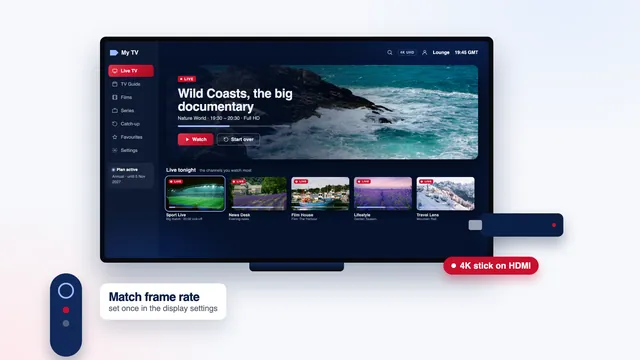
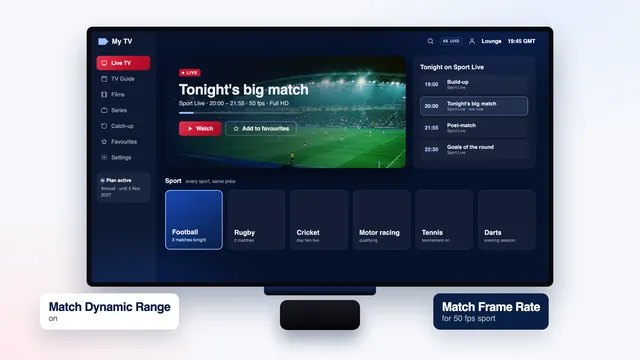
On Apple TV, go to Settings › Video and Audio › Match Content and turn on Match Frame Rate and Match Dynamic Range. The box then switches the TV to the rate of each programme, so a 50 frames per second match plays at 50 Hz with no regular stepping, and menus are not forced into HDR. The Apple TV guide covers the rest of that box’s settings.
On Fire TV, Android TV and Google TV devices, look for a frame-rate matching option in the display settings or in the player: at the time of writing, TiviMate calls it auto frame rate and Kodi ‘Adjust display refresh rate’. For the picture menus themselves, see the Firestick guide or the Smart TV guide.
Sport mode and Game mode: read the small print
Sport mode sounds like the obvious choice, but it usually pushes brightness, colour and sharpness hard and sets motion smoothing to its strongest. The grass turns fluorescent and white kits glow. Start from Standard, or a Cinema or Filmmaker mode, with motion smoothing off, and add a little brightness for daytime matches.
Game mode cuts processing to reduce lag for consoles, which means nothing when you are only watching. On some sets it also switches off local dimming and noise reduction, leaving a grainier crowd and flatter night matches, so keep it as a fallback for a TV with no other way to turn motion smoothing off.
When a match stutters: the checks, in order
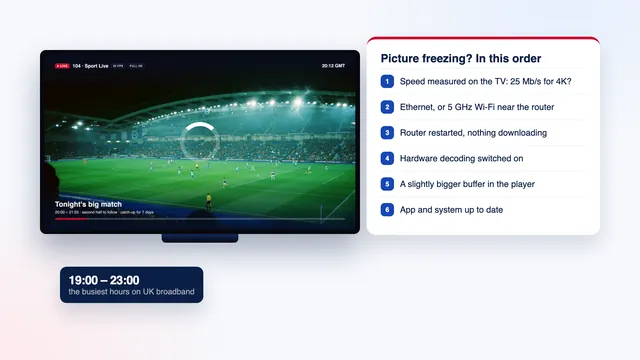
A stuttering match has a handful of usual causes. Work down this list; the first checks take seconds.
- Change channel and come back. If one channel stutters while others play smoothly, the problem is that source: note the channel name and the time for the team.
- Look around the house. A console update, a cloud backup or two more streams can take the bandwidth the match needs.
- Restart the player, then the router. Close the app fully, switch the router off for 30 seconds, then start the match again.
- Measure the speed on the device, now. If it falls below the figure for the picture you are watching, pick the HD or Full HD version of the channel if the list has one, or move the device onto Ethernet.
- Tell stutter from stepping. A regular hitch every second or so, with no freezes, is a frame-rate mismatch rather than the network: turn on frame-rate matching.
- Contact the team. Send the channel, the device, the time and your speed result through the contact page; support runs 24/7 in English on WhatsApp and email.
The full list of network causes, from crowded Wi-Fi to the player buffer, is in our guide to buffering.
Choosing a plan for a sports household
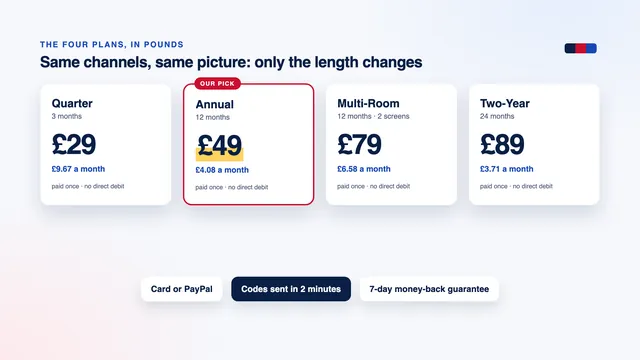
For IPTV UK sports, every plan carries the same channels, the same sport and the same picture quality; only the length and the number of screens playing together change:
- Quarter: £29 for 3 months, one screen;
- Annual: £49 for 12 months, about £4.08 a month, one screen, the plan we recommend;
- Two-Year: £89 for 24 months, one screen, the lowest monthly price at £3.71;
- Multi-Room: £79 for 12 months, two screens at once, for a home where the match plays in the lounge while someone upstairs watches something else.
You pay once by debit or credit card or PayPal, with no direct debit and no automatic renewal. The plans page sets out what each one includes, the cost guide works out the price per month and per day, and you can order from the four plans on the home page.
The login reaches you by WhatsApp or email within 2 minutes of payment, at any hour. To have everything ready before a big match, follow the setup overview for your device, and see what IPTV UK 8K includes if you are still comparing.
Frequently asked questions
Is every sport channel at 50 frames per second?
No. Live sport reaches you at 50 frames per second when the source allows it, and most of it is produced that way, but some channels and recorded programmes run at 25. VLC’s codec information gives the exact figure.
How far behind the TV broadcast is a live match?
Usually a few seconds to about 30 seconds, depending on the channel, the player and its buffer. Mute score alerts and group chats before kick-off.
What broadband do I need to watch sport in 4K?
About 25 Mb/s per 4K screen, stable during the evening peak and measured on the TV device rather than a phone. Full HD needs about 10 Mb/s and HD about 5 Mb/s.
Why does the picture step every second or so without ever freezing?
That regular hitch comes from a 50 frames per second match shown by a device running at 60 Hz. Turn on Match Frame Rate on Apple TV, or the frame-rate matching option of your stick, box or player. Your broadband is not the cause.
Can two people watch two different matches in two rooms?
Yes, with Multi-Room: two screens can play together for £79 a year, while the other three plans allow one screen at a time. Add the broadband needs of both screens together.
Can I watch a match I missed?
On channels that offer catch-up, yes, usually up to 7 days back. Look for the small clock or arrow icon on past programmes in the TV guide, or for the Catch up menu in players that have one.