Guide
IPTV UK Firestick guide: from Downloader to a steady picture
This IPTV UK Firestick guide follows the order of the screens you will meet, from a stick fresh out of its box to live UK channels, a full TV guide and a picture that holds steady through a match, with the faults people run into most often at the end.
IPTV UK Firestick: which models work
Every Fire TV device that runs Fire OS can install a player and read our access. The models differ in the picture they send, the speed at which they scroll a long channel list and the storage they leave free.
| Device | Picture it sends | Network | How it suits our access |
|---|---|---|---|
| Fire TV Stick (HD) and Stick Lite | Full HD, 1080p | Wi-Fi; Ethernet with an adapter | Fine for a Full HD bedroom or kitchen set; slower on very long lists. |
| Fire TV Stick 4K | 4K with HDR10, HDR10+ and Dolby Vision | Wi-Fi; Ethernet with an adapter | A sound choice for the 4K television in the lounge. |
| Fire TV Stick 4K Max | 4K HDR, Dolby Atmos sound | Faster Wi-Fi; Ethernet with an adapter | The quickest stick, with the most storage on its newest version. |
| Fire TV Cube | 4K HDR, Dolby Atmos sound | Wi-Fi and a built-in Ethernet port | Sits on a shelf, away from the heat behind the set. |
| Sticks running Vega OS | Depends on the model | Wi-Fi | Appstore apps only: no Downloader route, so no Smarters Pro. |
To see what you own, open Settings › My Fire TV › About; the model’s name heads the page.
Install a player with Downloader
IPTV Smarters Pro, the player most people start with, is not in the Amazon Appstore. It reaches the stick through Downloader, a small free app by AFTVnews that is in the Appstore and does one job: it fetches a file from a link and hands it to the installer. Our comparison of the players that read the access explains what each one does well before you choose.
- From the home screen, open Find (the magnifying glass), search for Downloader and install the orange app published by AFTVnews. Ignore copies listed under other developer names.
- Go to Settings › My Fire TV › Developer options › Install unknown apps and switch Downloader to On. No other app needs this permission.
- If Developer options is missing, open Settings › My Fire TV › About, highlight the device name and press the centre button seven times; go back one screen and the menu appears.
- Open Downloader, allow it to reach your files if it asks, type the download link sent with your login into the address box and select Go.
- When the download finishes, choose Install, then Done. Accept Downloader’s offer to delete the installation file, which only takes up space now.
- Hold the Home button, choose Apps, highlight the new player, press the Menu button (three lines) and pick Move to front.
Once the player opens properly, you can switch Downloader off again under Install unknown apps. Keep the app itself for its built-in browser and for any reinstall.
Type the Xtream login without mistakes
Your codes reach you by WhatsApp or email 2 minutes after payment, at any hour. The message holds a username, a password and a server URL, which together form the ‘Xtream Codes’ login, plus an M3U playlist link, a TV-guide link and the date your access ends. On a Firestick, use the Xtream login: it brings in the channels, the library and the 7-day guide in one step.
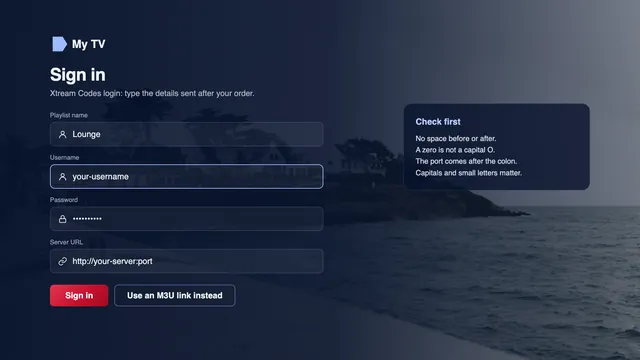
Open the player and pick the Xtream Codes option; IPTV Smarters Pro labels it ‘Login with Xtream Codes API’. Four boxes appear:
- Name: any label you like, such as ‘Lounge’.
- Username and Password: copied character for character, capitals included.
- URL: the server address with its port, in the form
http://your-server:port. Keep thehttp://at the start and the colon before the port number.
Spare yourself the on-screen keyboard
Typing a long password with the remote is where most typos creep in. Install the Amazon Fire TV app on your phone, connect it to the stick over the same Wi-Fi and tap its keyboard icon: you can then paste each line from the delivery message. Watch for a lower-case l against a capital I or the digit 1, the letter O against a zero, and a stray space after the last character. The first sign-in then takes a minute or two; let the progress bar finish before you press anything.
Load the TV guide and check the times
Because the 7-day guide travels with the Xtream login, most players need no separate address for it. Smarters Pro shows the listings in the TV guide view under Live TV. If the grid stays empty, run the player’s update or refresh EPG option once and wait: a week of listings for thousands of channels is a sizeable download for a stick.
Players that only take an M3U playlist ask for an EPG or XMLTV address on a separate line. Paste the TV-guide link from your delivery message there, not the playlist link.
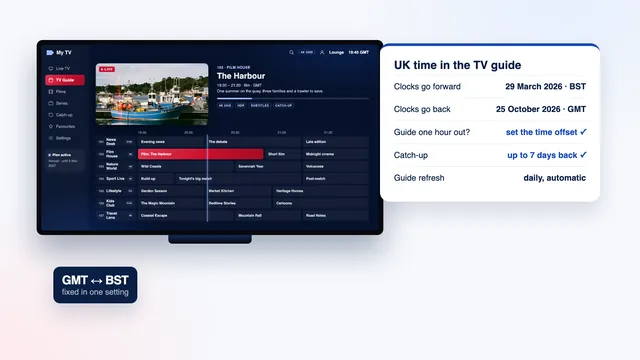
The listings run on UK time, yet two things can push the grid out of line: a wrong time zone on the stick (Settings › Preferences › Time Zone should read London) and the switch between GMT and BST in March and October, after which some players show every programme an hour out until you adjust their EPG time offset. The TV guide and catch-up article walks through that setting player by player.
Picture, frame rate and sound settings
A Fire TV leaves the factory tuned for 60 frames per second, while UK television is made at 50 and films at 24 or 25. A few changes under Settings › Display & Sounds make a visible difference on sport and slow camera pans.
- Display › Video Resolution: leave it on Auto, so the stick sends the highest resolution the television accepts.
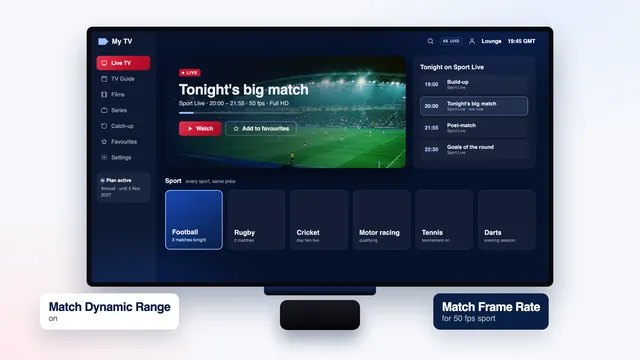
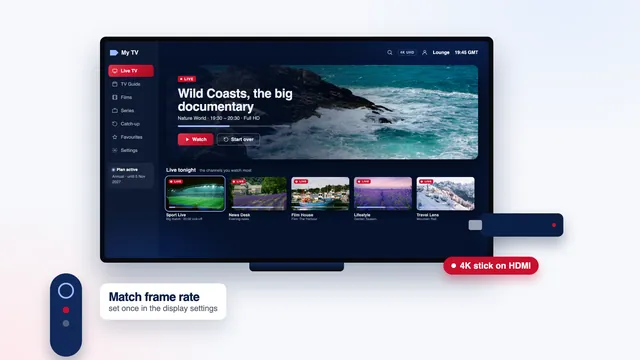
- Display › Match Original Frame Rate (4K, 4K Max and Cube): switch it on. The television then moves to 50 Hz for live sport, which removes the faint stutter as a ball crosses the screen. The switch only happens when the player requests it, so if your player has its own auto frame rate (AFR) option, turn that on too.
- Display › Dynamic Range Settings: choose Adaptive. Always HDR forces ordinary channels into HDR, which tends to leave them grey or too dark.
- Audio › Surround Sound: Best Available, so a soundbar gets Dolby Digital or Dolby Atmos whenever the source carries it. AV Sync Tuning in the same menu fixes voices that drift from lips.
Pictures go up to 4K UHD on the channels and titles produced in 4K, and each source sets its own ceiling. To see those, the stick needs a 4K television on an HDMI 2.0 input or newer and about 25 Mb/s that holds steady on the stick itself. HDR10, HDR10+, Dolby Vision and Dolby Atmos appear only when the source offers them and both the player and the television support the format.
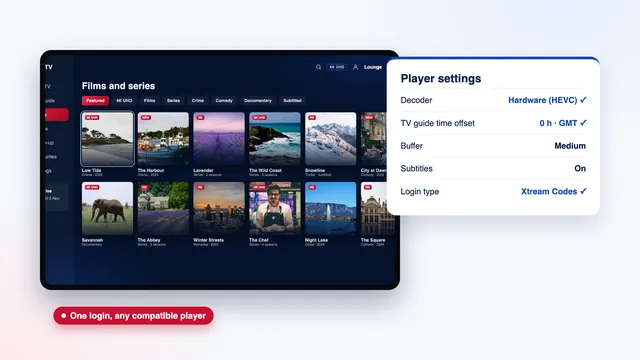
Inside the player, pick the hardware decoder whenever there is a choice: software decoding heats the stick and drops frames. Our article on live sport at 50 fps goes further into match-night settings and the short delay behind broadcast.
Storage and cache housekeeping
A Firestick has only 8 or 16 GB of storage, and players fill it quietly with channel logos, posters for 120,000 films and series and a week of guide data. When space runs low, the stick slows down and updates fail.
A ten-minute monthly routine keeps an IPTV UK Firestick quick:
- Check the free space under Settings › My Fire TV › About › Storage.
- Clear the player’s cache: Settings › Applications › Manage Installed Applications, choose the player, then Clear cache. Leave Clear data alone unless you mean to type the login again, because it wipes the profile as well.
- Uninstall apps you no longer open, from the same Manage Installed Applications list.
- In Downloader, open Files and delete any installer left behind.
- Restart the stick from Settings › My Fire TV › Restart, or hold Select and Play/Pause on the remote together for about five seconds.
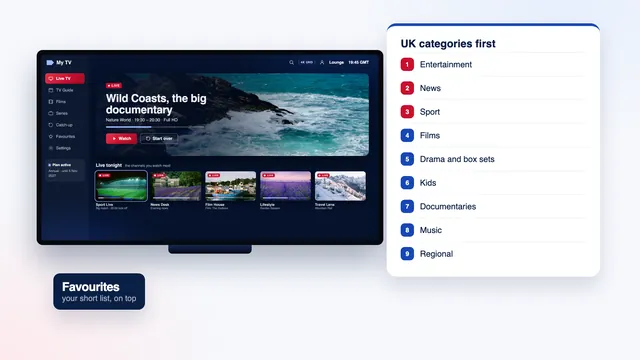
Hiding the country groups you never watch also shortens loading after each restart; the article on how the channel list is organised shows how to build a favourites list on top. If the player ever has to be reinstalled, ask for the current download link through the contact page rather than hunting for a file online.
Keep the stick cool, powered and wired
Heat
A stick plugged straight into the back of a television sits in the warm air rising from the set, and a wall-mounted screen leaves it almost no airflow. Heat shows up as lagging menus, a picture that starts to stutter after an hour, surprise restarts or an overheating message. Use the short HDMI extender from the box so the stick hangs clear of the panel and its vents.
Power
Run the stick from the mains adapter supplied with it. Many TV USB ports deliver too little current, which triggers a power warning, and they cut out in standby, so the stick reboots every evening and reloads the guide.
A cable instead of Wi-Fi
Behind a television, the metal back of the set blocks part of the Wi-Fi signal, and in flats and terraced streets the 2.4 GHz band is crowded. Join the 5 GHz network if the router is close, and think about a wired link for 4K or big matches:
- Amazon sells an Ethernet adapter that slots between the power lead and the stick, and third-party adapters with a USB power pass-through do the same. They run at 100 Mb/s, several times what a 4K stream needs.
- The Fire TV Cube has an Ethernet port built in.
- When the router is in another room, powerline adapters or a mesh point near the television bring the connection to you.
Measure the speed on the stick, not on your phone, by opening a speed-check website in Downloader’s browser. Look for about 10 Mb/s for Full HD and 25 Mb/s for 4K, steady rather than in bursts. If the figure sags in the evening, the buffering checklist takes you through the checks in the right order.
Common Firestick errors and how to fix them
Most IPTV UK Firestick faults come down to a handful of causes. Find the message or symptom on the left and work across.
| What you see | Likely cause | What to do |
|---|---|---|
| ‘App not installed’ in Downloader | Unknown apps not allowed for Downloader, or too little free space | Switch Downloader on under Install unknown apps, free some space, download again. |
| No Developer options and no way to add Downloader | A stick running Vega OS | Use a Fire OS stick, a smart TV player or an Apple TV instead. |
| ‘Invalid username or password’ or an authorisation error | A typo, a capital letter, a trailing space or an end date that has passed | Paste the details again with the phone app; check the end date. |
| ‘Unable to connect’ or an endless spinner at login | URL without http:// or without the port, or no internet on the stick | Retype the URL as http://your-server:port and check Settings › Network. |
| Channels load but the guide is blank | The EPG has not finished downloading | Run the player’s EPG update, wait, then restart the player. |
| Sound but a black picture on 4K titles | An HDMI input that is not 4K-ready, or the enhanced HDMI format off on that input | Move the stick to the television’s 4K input and turn on its enhanced HDMI format. |
| A message about too many connections | The login is already playing on another screen | Stop it on the other device; two screens at the same time need Multi-Room. |
The smart TV article names the enhanced HDMI menus on Samsung and LG sets, the Apple TV article covers the other popular box, and our setup page lists a player for every other screen.
An IPTV UK Firestick counts as one screen. Annual covers it for 12 months at £49, or £4.08 a month; Two-Year brings that down to £3.71 a month, and Multi-Room at £79 lets a second television play at the same time. Every plan carries the same channels and picture quality: compare them in the four plan cards, read how ordering and delivery work or start from IPTV UK at a glance. Sharing one login between the stick and other devices is covered in the article on watching across several devices.
Frequently asked questions
Does every Firestick work with our access?
Every Fire TV device that runs Fire OS does, from the HD stick to the Cube. Sticks built on Vega OS only install Appstore apps, so Smarters Pro and the other players outside the Appstore cannot go on them. Check the operating system before you buy a new one.
Do I need a 4K stick if my television is Full HD?
No. A Full HD stick sends 1080p, which is all a Full HD set can show, and it reads the same login. A 4K model only pays off if a 4K television is coming soon.
Is it safe to leave unknown apps switched on?
Only Downloader holds that permission, and you can switch it off once the player is in. Never use Downloader to fetch players from forum posts or file-sharing sites.
Why does my Firestick show channels but no TV guide?
The guide is a bigger download than the channel list and often lands a few minutes later. If a refresh of the EPG in the player’s settings does not fill it, sign out and back in, then get in touch with our team.
Can the Firestick and my phone play at the same time?
Not on Quarter, Annual or Two-Year, which allow one screen at a time. Multi-Room plays on two screens at once for 12 months. You can still move one login between the stick and the phone, provided only one is playing.
What happens on the stick when my plan ends?
The player keeps its settings, but the channels stop loading on the end date in your message, because nothing renews by itself. To carry on, you place a new order and type the new login into the same player; nothing needs reinstalling.