Guide
IPTV UK app: the right player for every screen
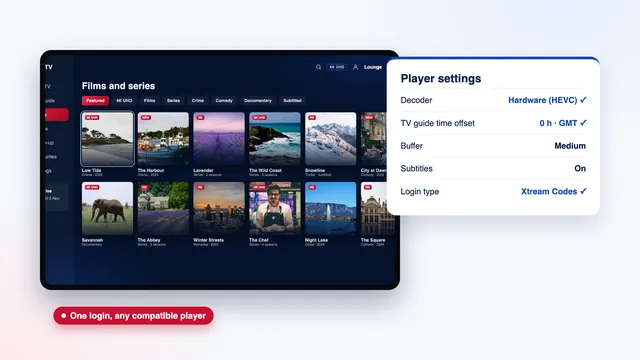
Searching for an IPTV UK app usually ends in the same place: a player you install from your TV’s own store, not an app made by us. Your login works in any compatible player, so this guide helps you choose one for each screen in the house, spot the copies that borrow a famous name, and decide between the Xtream login and the M3U link.
Why there is no IPTV UK app to download from us
We sell access to live channels, films and series, not software. What lands on your phone or in your inbox 2 minutes after you pay is one message: your username, password and server address (together, the Xtream Codes login), the XMLTV address for the TV guide, an M3U playlist link and the date your plan ends. Every player in this guide knows what to do with those details.
The split works in your favour. The developer builds and updates the player, the store checks it, and our team looks after the channels, the guide data and the help when something refuses to load.
So when a website advertises its own IPTV UK app with channels already inside, slow down rather than tap install. A real player opens empty and only fills up once you add a login. The IPTV UK 8K home page lists what comes with the access.
Seven players that read our access
Whichever IPTV UK app you end up choosing, it will probably be one of these seven. Some are free, some ask for a one-off activation and some sell extras inside the app, at prices set by each developer that vary by store.
IPTV Smarters Pro
The « Smarters Pro » app, published by Tech Smarters Private Limited, costs nothing to download; an in-app « Premium » is optional. It runs on iPhone, iPad and Apple TV from the App Store, on Macs with Apple silicon, and on Android phones, tablets and televisions from Google Play. It contains no channels: you sign in with the Xtream Codes login or add the M3U playlist, and the home screen splits into live TV, films, series and catch-up.
TiviMate
TiviMate is made for televisions and remotes: an Android TV and Fire TV player, free to install, with paid premium options. Its strong point is a grid-style programme guide that feels close to a set-top box, alongside a channel list that is easy to trim. Several of its extras, recording and multi-view among them, sit in those premium options. On a phone, pick another player.
IBO Player
IBO Player turns up on many Samsung and LG televisions. On first launch it shows the set’s MAC address and a device key; you link your playlist to those two values on the player’s website, and the TV loads it at the next start. The link belongs to that one television, so a second set needs its own entry. The Smart TV setup guide goes through each screen of the process.
Smart IPTV
Smart IPTV works in a similar way on Samsung and LG sets, with one thing to know first: it needs a one-off activation for each TV. You note the MAC address it displays, send the playlist from its website against that address, then restart the app. It is a plain, quick player for homes that want live channels and not much else.
XP IPTV
XP IPTV is an Android player from Google Play. It takes the same Xtream login, which makes it a handy spare: when your usual player misbehaves after an update, the same login in a second app shows within a minute whether the app is at fault.
VLC
VLC is VideoLAN’s free player, and it handles the M3U link on computers running Windows or macOS, on Android and on iOS; it sits in the Apple TV App Store too. It copes with almost any video format, which makes it the quickest way to confirm that a stream plays at all. There is no programme guide and no catch-up, though, so treat it as a checking tool rather than your nightly player.
Kodi with PVR IPTV Simple Client
Kodi is a full media centre rather than a single-purpose player. To read our access it needs the « PVR IPTV Simple Client » add-on, listed among the PVR clients in Kodi’s add-ons. In its settings you paste the M3U link and the XMLTV guide link, and the live channels then appear in Kodi’s TV section with a programme guide. It suits people who already use Kodi; for anyone else it is more configuration than the other six.
Which player suits which device
The first table matches each screen in the house with a player. The second compares what the players do once you are signed in.
| Device | First choice | Also works | Where the player comes from |
|---|---|---|---|
| Fire TV Stick, 4K Max or Cube | IPTV Smarters Pro | TiviMate | Smarters Pro: Downloader, with the link sent with your login |
| Android TV or Google TV set or box | TiviMate | Smarters Pro, XP IPTV | The TV’s own Google Play |
| Samsung (Tizen) or LG (webOS) TV | IBO Player or Smart IPTV | Smarters Pro, where the model and country allow | The TV’s own store; availability varies by model |
| Apple TV 4K, iPhone or iPad | IPTV Smarters Pro | VLC | App Store only |
| Mac with Apple silicon | IPTV Smarters Pro | VLC | App Store for Smarters Pro; VideoLAN for VLC |
| Windows PC | VLC | Kodi | Each developer’s own website |
| Android phone or tablet | IPTV Smarters Pro | XP IPTV, VLC | Google Play |
| Player | TV guide | Catch-up | Multi-view | Recording |
|---|---|---|---|---|
| IPTV Smarters Pro | Yes | Yes, on channels that offer it | On some versions | On some versions |
| TiviMate | Yes, grid style | Yes, on channels that offer it | Yes, premium option | Yes, premium option |
| IBO Player | Yes | Varies by version | — | — |
| Smart IPTV | Yes, basic | — | — | — |
| XP IPTV | Yes | Varies by version | — | — |
| VLC | — | — | — | Record button on computers |
| Kodi + PVR IPTV Simple Client | Yes, from the XMLTV link | Yes, once switched on in the add-on | — | — |
A dash means the version we looked at had no such feature, or offered it too unevenly between devices to count on. Features arrive and disappear with updates, so read the store listing before paying for an upgrade. Catch-up only ever covers the channels that offer it, usually up to 7 days back, whichever player you use.
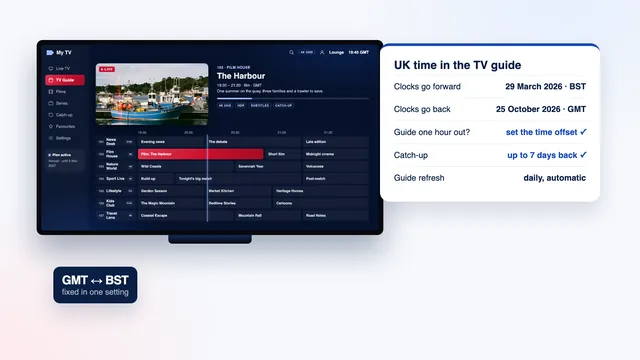
The guide and catch-up columns depend on the login as much as on the app: the TV guide and catch-up article explains how the 7-day grid loads and how to correct it when the times drift.
Xtream login or M3U link: which one to use
Your delivery message contains both, and they open the same channels. What changes is how much the player learns from each.
The Xtream login: three boxes, everything included
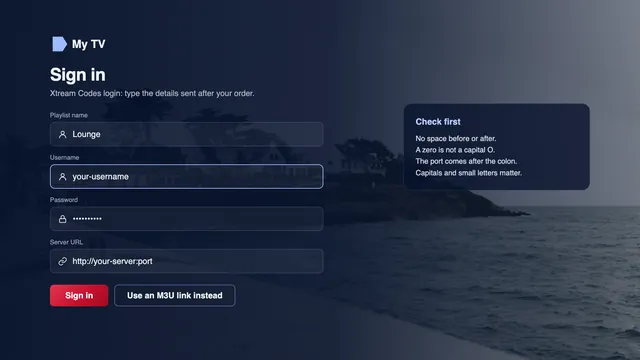
The Xtream Codes login has three parts, typed into three boxes: username, password and server URL. With it, the player asks the server for the channel list, the film and series library, the 7-day guide and the catch-up archive, and files each one in its own section. It is the route to take in Smarters Pro, TiviMate, IBO Player and XP IPTV, and the guide usually arrives with no extra step.
Type the server URL exactly as sent, starting with http:// and ending with the port number after the colon, as in http://your-server:port. Leaving out the port, a capital letter in the wrong place or a space copied after the password are the usual reasons a player turns a login away.
The M3U link: one line for simpler players
The M3U playlist link packs your username and password into one long web address. VLC, Kodi and Smart IPTV work from this kind of link. Fed an M3U link, most players show the live channels without trouble, but films and series may land in one long list, and the guide appears only once you add the XMLTV link as well.
Look-alike apps and the developer-name check
Well-known player names attract copies. Search a store for a popular player and you may see several apps with almost the same name and icon from different developers. Some are harmless clones; others are packed with adverts, ask for permissions a video player has no use for, or try to sell you channels of their own.
- Read the developer’s name under the app title before you install. For Smarters Pro it should be Tech Smarters Private Limited; for VLC, VideoLAN.
- Look at the permissions. A player needs the network and some storage; it has no reason to read your contacts, messages or location.
- Walk away from any player that comes pre-loaded with channels, or asks for card details before you have even added a login.
- Check the date of the last update. An app left untouched for years may stop working after your TV’s next system update.
Installed a copy by mistake? Delete it, install the genuine player and type your login again: the access is not tied to the app, so nothing is lost. If you are not sure which version you have, send a photo of the app’s information screen to the team through the contact page or on WhatsApp, and they will check it with you.
Why we never ship an APK
An APK is an Android installation file. Some sellers hand them out, often a renamed or modified player carrying their own logo. We never do, for three reasons.
- Safety. A file passed round on forums or download pages has been checked by no store, and unknown APKs of this kind can carry malware that reaches everything else on your home network.
- Updates. A player installed from Google Play or the App Store keeps itself current. A loose APK stays frozen at the version you sideloaded, until a TV update breaks it.
- Choice. Because we only supply a login, you keep whichever player you like and can switch whenever you want. A branded app would tie you to whoever built it.
On Android TV and Google TV, install from the television’s own Google Play; taking an app from anywhere else means allowing that source in the settings, a door better left shut. Fire TV is the case people meet most, because Smarters Pro is absent from the Amazon Appstore: the download link is sent with your login, and the Fire TV Stick guide explains the « Install unknown apps » switch for Downloader.
On Apple TV, iPhone and iPad the question never arises, because players come from the App Store only; the Apple TV guide covers the display settings that matter there.
First settings to change in any player
- Decoder. Choose hardware decoding where the player offers the choice. Where a channel or film was produced in 4K, the picture can reach 4K UHD, always depending on the source; to see it you need a 4K set, HDMI 2.0 or later from end to end, and a device that decodes HEVC (H.265) in hardware.
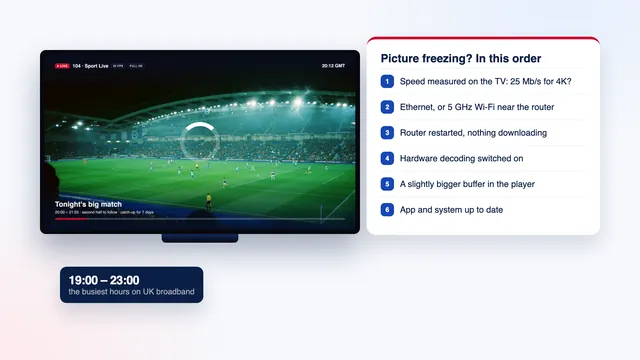
- Buffer. A medium buffer absorbs short Wi-Fi drops; raise it a notch if the picture pauses during the busy evening hours. The buffering checklist takes the causes in order.
- Frame rate. For live sport at 50 frames per second, let the device match the frame rate of the stream where it can. The live sport guide covers the broadband it needs at kick-off.
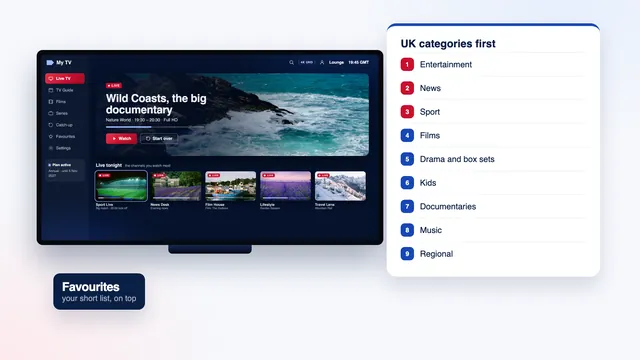
- Favourites. Star the channels you actually watch before you do anything else. The channel list guide shows how to cut 40,000+ channels down to one screen.
For the complete walk-through by device, from typing the login to the picture settings, see the IPTV UK setup page.
One login, several players, one household
You can keep two or three players on the same TV and sign in to each with the same login; the limit applies to streams playing at the same moment, not to apps. Quarter, Annual and Two-Year each cover a single screen at once, while Multi-Room covers two together, say the lounge and a bedroom. The guide to watching on several devices explains how to move between rooms without cutting off each other’s stream.
The access is meant for one household; sharing it beyond your home puts it at risk of suspension.
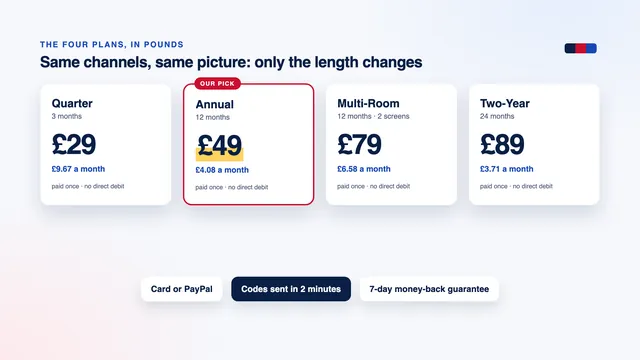
Renewing leaves your players in place. Nothing renews by itself: you place a fresh order, receive fresh login details and enter them in the apps already installed. Prices are on the four plans and set side by side on the plans page. The Annual plan, £49 for 12 months, is the plan we point most households to, and the cost guide turns every plan into a price per month and per day.
Frequently asked questions
Is there an IPTV UK app I can download from you?
No. We sell access, not software, and we never send an APK of our own. You install a player such as IPTV Smarters Pro, TiviMate or IBO Player from your device’s store, then type the login from your delivery message.
Which player should I use on a Firestick?
IPTV Smarters Pro and TiviMate both suit a Fire TV: Smarters Pro for its separate tiles for live TV, films and series, TiviMate for its programme guide. Since Amazon’s Appstore does not carry Smarters Pro, it is installed through Downloader, with the link sent with your login; the Firestick installation guide has the steps.
Can I use the same login in two different apps?
Yes. The login is not tied to a player, so you can keep two apps on one device or a different app on each screen. What counts is how many streams play at once: one with most plans, two with Multi-Room.
Why does the player say my login is invalid?
Most often it is a typing slip: a capital letter in the username, a space after the password or a server URL without its port. Copy each field on its own from the message rather than the whole block. If it still fails, check the end date in the message and contact the team.
Do I need to pay for a player’s upgrade?
Not to watch. The free versions of Smarters Pro and TiviMate play live channels with the guide; the paid options add extras, such as recording and multi-view in TiviMate. Those prices are set by the developers, vary by store and are separate from your plan.
Can I watch on a laptop?
Yes. VLC opens the M3U link on Windows and Mac; on a Mac with Apple silicon, Smarters Pro from the App Store adds the programme guide and catch-up.