Guide
IPTV UK Apple TV guide: players, Match Content and a steady picture
An IPTV UK Apple TV set-up comes down to three choices: a player from the App Store, two switches in the video settings and either a cable or a strong Wi-Fi signal. This guide covers the Apple TV 4K first, then the iPhone and iPad, and the moments when AirPlay from a phone is worth using.
IPTV UK Apple TV: the devices that work
Any Apple TV on a current version of tvOS installs players from the App Store, and so does every recent iPhone and iPad. Macs with Apple silicon run IPTV Smarters Pro as well. The device you pick mainly changes the picture ceiling and the network options.
| Device | Highest picture | Network | Notes |
|---|---|---|---|
| Apple TV 4K with an Ethernet port (2017, 2021, and the 2022 Wi-Fi + Ethernet version) | 4K with Dolby Vision and HDR10; HDR10+ on the 2022 model | Gigabit Ethernet and Wi-Fi | A good fit for a lounge where a cable can reach |
| Apple TV 4K, 2022 Wi-Fi version | 4K with Dolby Vision, HDR10+ and HDR10 | Wi-Fi 6 only, no Ethernet port | Keep it within sight of the router |
| Apple TV HD | Full HD, 1080p | Ethernet and Wi-Fi | Check that your chosen player still supports it |
| iPhone and iPad | The screen’s own resolution | Wi-Fi or mobile data | Counts as a screen while it plays |
Whatever the generation, the settings below are the same. To check which Apple TV you have, open Settings › General › About and read the model line.
Players come from the App Store only
tvOS, iOS and iPadOS install apps from the App Store and nowhere else: there is no Downloader, no APK and no unknown-sources switch. That keeps things simple and safe, but it also means your choice is whatever the UK store lists on the day you look.
- IPTV Smarters Pro, by Tech Smarters Private Limited, is on Apple TV, iPhone and iPad at the time of writing. The download costs nothing, an optional in-app Premium is offered (prices vary by store), and the app holds no channels of its own: it signs in with the Xtream login or an M3U playlist.
- VLC, by VideoLAN, free, opens the M3U link as a plain list of channels with no guide grid. It makes a useful spare, or a quick way to check a single channel.
- Other App Store players also accept an Xtream login or an M3U link. Before paying for one, look at the developer, the date of the last update and whether the Apple TV version shows a guide grid.
We do not publish an app of our own; these players read our access. The comparison of players goes through their strengths and weak spots in more depth.
Sign in on the Apple TV
- Open the App Store on the Apple TV, search for the player and install it.
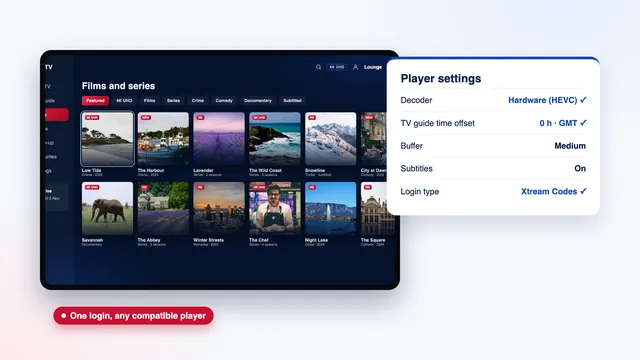
- Start the player and choose the Xtream Codes login. Smarters Pro asks for a profile name, then the username, the password and the URL.
- Enter the URL exactly as written in your message, in the form
http://your-server:port, port number included. - Wait while the player downloads the live channels, the films and series and the 7-day guide.
Typing with the Siri Remote is slow. When a text box is open on the Apple TV, an iPhone or iPad nearby that is signed in to the same Apple Account shows a keyboard notification: tap it, then type or paste each line from the delivery message. The Apple TV Remote in the iPhone’s Control Centre has a keyboard button too.
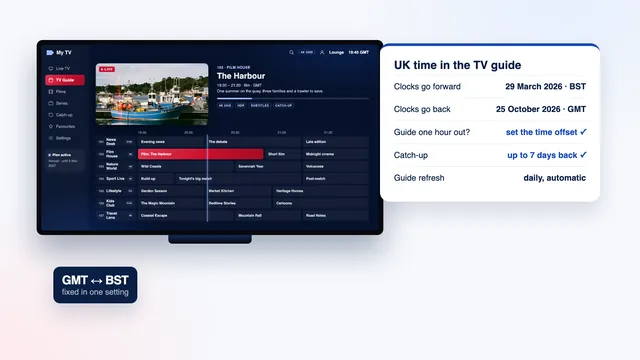
The delivery message lands on WhatsApp or in your inbox 2 minutes after you pay. Besides the Xtream details, the message holds an M3U link for players such as VLC and an XMLTV link for players that load the guide separately. If the grid looks an hour out after the clocks change, the article on the TV guide shows where each player keeps its offset setting.
Match Dynamic Range and Match Frame Rate
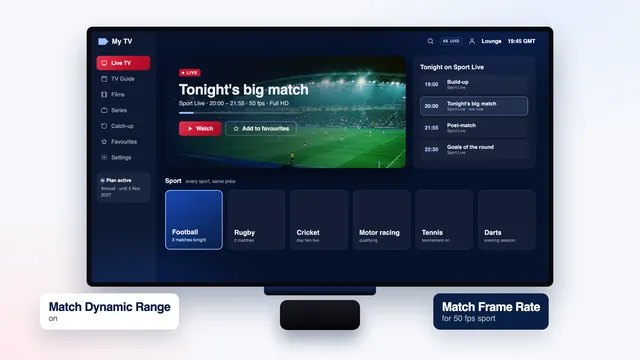
Out of the box, an Apple TV 4K often sends everything in one fixed format, such as 4K HDR at 60 Hz. With UK television that has two side effects. Ordinary channels are pushed into HDR, so menus and faces look washed out or glaring, and 50 fps sport is squeezed into 60 Hz, so a ball crossing the pitch moves in small jerks.
- Open Settings › Video and Audio › Format and pick 4K SDR. In the UK, the 50 Hz version suits a television that mostly shows live channels.
- Go back to Video and Audio › Match Content and turn on Match Dynamic Range.
- In the same menu, turn on Match Frame Rate.
With both switches on, the Apple TV changes mode to suit each stream: HDR when the source offers it, standard range for everything else, and 50 Hz for live sport where the source allows it. The screen may go black for a second while the television switches; that pause is the setting at work. Frame-rate matching relies on the player passing the stream’s rate to tvOS, so if one player still shows judder, the 50 Hz format from step 1 covers it.
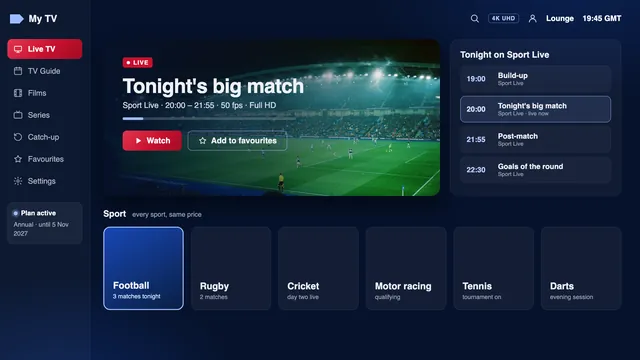
Pictures reach 4K UHD only on the channels and titles produced that way; elsewhere you see HD or Full HD, as the source dictates. For 4K and HDR, plug the Apple TV into an HDMI 2.0 (or later) socket on a 4K set with a High Speed HDMI cable bought separately, since none comes in the box. Settings › Video and Audio › Check HDMI Connection runs a short check on the cable you have.
For sound, leave Change Format off under Audio Format. The Apple TV then picks Dolby Atmos or Dolby Digital 5.1 when the title carries it and your soundbar or receiver accepts it, and plain stereo otherwise.
Ethernet or Wi-Fi on Apple TV
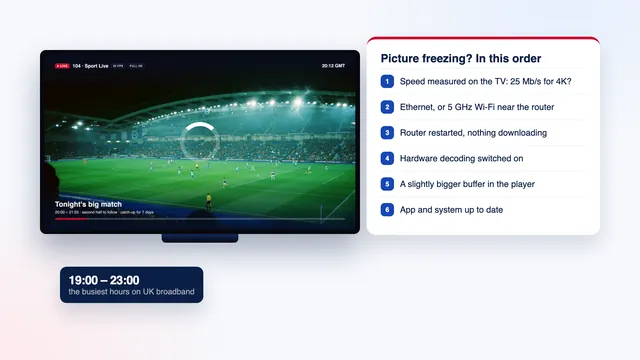
For IPTV UK Apple TV viewing, a cable wins whenever the model has a port. Every Apple TV 4K except the Wi-Fi-only 2022 version has Gigabit Ethernet, and the box moves to it as soon as a live cable is plugged in. Even a 100 Mb/s run through powerline adapters gives a 4K stream several times the 25 Mb/s it needs.
On Wi-Fi, stand the box where it can see the router, not inside a closed cabinet, and join the 5 GHz network. Settings › Network shows whether you are on Wi-Fi or Ethernet, the network name and the signal strength. For a real figure, install a speed-check app from the App Store and run it on the Apple TV during the evening, when home broadband is at its busiest.
When the picture stutters
A full restart clears most glitches: Settings › System › Restart. To close a player that has stopped responding, double-press the TV button on the remote and swipe the player’s card upwards. If drops keep coming in the evening hours, the order of checks in the guide to buffering applies on Apple TV as well.
tvOS manages storage by itself and may clear cached data when space runs short, so a player can take a little longer to open after a while; that is normal. Settings › General › Manage Storage shows how much room each app takes, and deleting and reinstalling a player empties its cache completely, at the cost of entering the login again.
Subtitles and audio tracks
The 120,000 films and series in the library are mostly in English, and the others come with subtitles; many titles carry more than one audio track as well. Live channels depend entirely on what the source sends: some include subtitles, many do not, and no player can add them.
- In players that use Apple’s own video controls, bring up the playback bar (swipe down on the remote’s touch surface or press the centre of the Clickpad) and look for the speech-bubble icon for subtitles and the audio icon for tracks.
- Players that draw their own controls put the same choices behind an on-screen button during playback, usually a speech bubble or ‘CC’.
- Subtitle size, font and background are set once for the whole box under Settings › Accessibility › Subtitles and Captioning › Style, and apply in players that use Apple’s video engine.
- To have subtitles on by default, switch on Closed Captions and SDH in the same menu.
If a film starts in the wrong language, change the track from the audio menu rather than searching for another copy, because the library entry often holds both. On a soundbar or an AV receiver, Dolby Atmos and 5.1 only come through when the title carries them.
iPhone and iPad: the same login on the move
On an iPhone or iPad, IPTV Smarters Pro and VLC install from the App Store just as they do on the Apple TV, and the same login opens the same channels, library and guide. Use the Xtream route in Smarters Pro; VLC takes the M3U link through Network › Open Network Stream.
- Mobile data: at about 5 Mb/s, an HD stream uses a little over 2 GB an hour, so keep long matches for Wi-Fi unless your allowance is large.
- Low Data Mode, in the mobile data options of the Settings app, can hold streams back; turn it off if a picture on 5G keeps pausing.
- Rotation lock in Control Centre stops the picture flipping when you watch lying down.
- Screens: a phone or tablet that is playing counts as a screen, exactly like a television.
With Quarter, Annual or Two-Year, one screen plays at a time, so the iPhone and the Apple TV can share a login as long as they take turns. Multi-Room allows two at once for 12 months, at £79. Our guide to watching on several devices sets out how that works in a busy household.
AirPlay as a fallback
AirPlay sends what plays on an iPhone or iPad to an Apple TV, or to one of the many recent Samsung and LG televisions that accept AirPlay 2. It gets you out of a hole in a room where the television has no player installed, but a native player on the Apple TV is steadier.
- AirPlay from the player: if the player shows the AirPlay icon (a screen with a triangle at its base), tap it and choose the television. The stream goes across in its own quality and the phone becomes a remote. Not every player allows it.
- Screen Mirroring: from Control Centre, choose Screen Mirroring and the television. The whole phone screen is copied and compressed again on the way, so motion is softer, the sound can lag a touch and the phone must stay awake on the same Wi-Fi.
Both routes add a step and a second device that can drop out: a call, a notification or a flat battery interrupts the picture. Treat AirPlay as a way through one evening, and install the player on the Apple TV for regular viewing.
For a first year on an Apple TV we suggest Annual, at £49 or £4.08 a month; the Two-Year plan lowers that to £3.71 a month. All four plans carry the same channels and picture quality, and the plan table sets them side by side, while the ordering page explains payment by debit or credit card or PayPal, paid once. The IPTV UK 8K home page sums up the rest. For a Firestick or a television in another room, see the Firestick article, the smart TV article or the full setup page. If the Apple TV refuses the login, message our team with a photo of the screen.
Frequently asked questions
Can I install a player on Apple TV without the App Store?
No. tvOS installs apps from the App Store only, so there is no side-loading route and no APK. That is why this guide sticks to players listed there, such as IPTV Smarters Pro and VLC at the time of writing.
Which Apple TV do I need for 4K?
Any Apple TV 4K sends 4K with HDR10 and Dolby Vision, and the 2022 model adds HDR10+. The Apple TV HD stops at 1080p. Choose a version with an Ethernet port if a cable can reach the television.
Why does the screen go black for a moment when a channel starts?
That is Match Content switching the television to the frame rate or dynamic range of the new stream. The blank lasts a second or two and means the picture then runs at its native rate. If it lasts much longer, run Check HDMI Connection in Video and Audio.
Do I have to pay for IPTV Smarters Pro on Apple TV?
The download is free, and an optional in-app Premium is offered at a price that varies by store. The app contains no channels: it reads the login our team sends you.
Does AirPlay from my iPhone look as good as a player on the Apple TV?
Usually not. Mirroring compresses the phone’s screen a second time, so fast sport looks softer and the sound can drift. AirPlay from inside a player keeps more quality, yet the native player remains the steadier option.
Why are there no subtitles on a live channel?
Subtitles on live channels come from the source, and many streams do not include them. Films and series in the library more often carry several subtitle languages. Check the subtitle menu during playback and the default under Subtitles and Captioning.