Guide
IPTV UK channels: finding your way round 40,000+ live channels
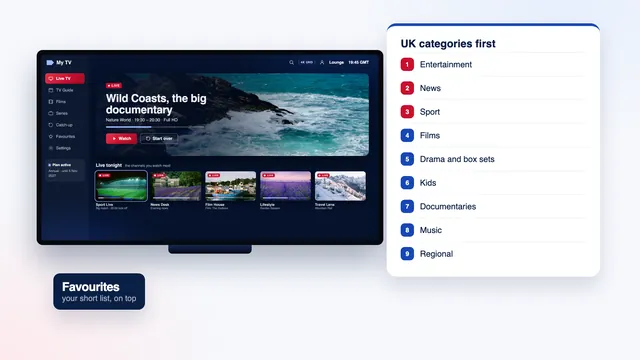
IPTV UK channels arrive as one long list of 40,000+ live channels, and the order of that list decides how quickly you reach the programme you sat down for. This guide explains how it is sorted, UK groups first and then country by country, what the quality badges mean, and how to shrink it to the few dozen you actually watch.
How the IPTV UK channels list is organised
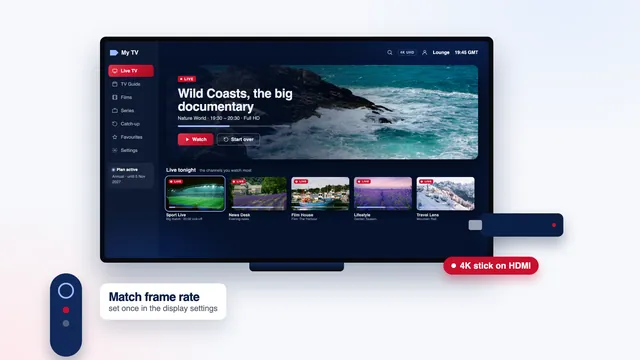
Inside the player, live TV opens on a column of groups, sometimes called categories. Pick one and its channels appear beside it; highlight a channel and most players start a small preview with the current programme from the guide.
The groups work on two levels: first the country, then the type of programme. The UK comes first, split into its own categories, so the channels most homes here reach for sit at the top rather than somewhere in the middle of a long alphabetical run. Other countries follow, each with its own groups.
On this site we describe the list by category and never by channel name. Every name appears in your player as soon as you sign in, and if you want to know whether a particular kind of channel is there before ordering, the team will answer through the contact page. Films and series on demand sit apart from all this, in a library of 120,000 titles, mostly in English and others with subtitles.

The UK categories, one by one
The UK part of the IPTV UK channels list holds nine groups, in the order below. Every player shows the same groups, because they come with the list rather than from the app.
| UK category | What it holds | How to use it |
|---|---|---|
| Entertainment | General channels: comedy, quiz and game shows, reality, soaps | A good place to start your favourites list |
| News | Rolling UK and world news, business and politics | Live by nature, so one or two favourites are usually enough |
| Sport | Football and rugby, cricket, golf and tennis, boxing, motor racing, snooker, darts and more | For match nights, read the sport at 50 fps guide |
| Films | Film channels that run to a schedule | For any film at any hour, open the on-demand library instead |
| Drama and box sets | Drama series, crime, period pieces and complete runs | Pair it with catch-up to follow a series week by week |
| Kids | Channels from pre-school age to young teens | Lock the other groups with the player’s PIN if it has one |
| Documentaries | Nature, history, science and true stories | Star the ones you keep returning to |
| Music | Music videos, charts and concerts | Handy as background sound while you do something else |
| Regional | News and programmes for the nations and regions of the UK | Star the channel for where you live and skip the rest |
Within a group, the same channel can appear more than once with different badges, which gives you a choice between a lighter and a sharper version. The section on badges further down explains how to pick.
Beyond the UK: channels country by country
Below the UK groups, the list carries on country by country, and each country’s channels are sorted into categories too. A family that also watches in another language therefore finds its news, sport or children’s channels grouped together rather than scattered.
Two habits make these groups easier to live with. First, hide every country nobody in the house watches, as described below, so the column of groups shrinks to a few lines. Second, if someone watches in another language, give that country’s most-used channels a favourites list of their own, where the player allows more than one.
Programmes on these channels are in their original language. For films and series with English subtitles, the on-demand library is usually the better place to look.
HD, FHD and 4K badges: what they tell you
Each channel name carries a short badge showing the quality of its source. It describes the picture leaving the source, not what your TV will make of it.
| Badge | Resolution | Stable broadband per screen | What your screen needs |
|---|---|---|---|
| HD | 1280 × 720 | Around 5 Mb/s | Any HD-ready TV, phone or tablet |
| FHD | 1920 × 1080 | Around 10 Mb/s | A Full HD television or better |
| 4K | 3840 × 2160 | Around 25 Mb/s | A 4K set, a 4K-capable box or stick that decodes HEVC (H.265) in hardware, and HDMI 2.0 or later between them |
The sharpest version of a channel reaches 4K UHD only where the source was produced in 4K, so the picture always follows the source and no programme is promised in 4K. HDR (HDR10, HDR10+ or Dolby Vision) and Dolby Atmos sound appear only when the source carries them and both the player and the TV can handle them.
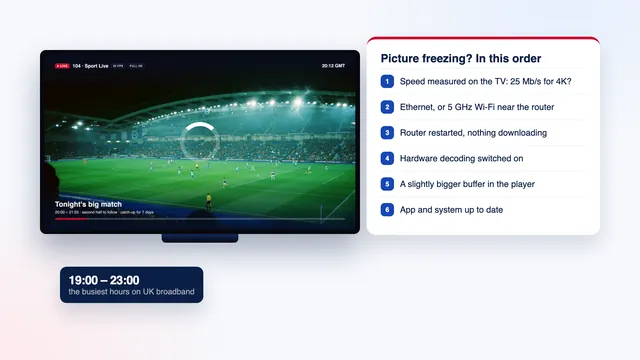
A 4K badge on a Full HD TV gives you a Full HD picture for the cost of a much bigger download, and an HD channel on a 4K TV is simply upscaled by the set. So match the badge to the weakest link: the screen, the device or the connection. Check the speed from the TV or stick that will play the channel, since a phone in the same room can show a very different figure, and give the sharper versions an Ethernet lead, or 5 GHz Wi-Fi with the router only a short distance away.
Building a short favourites list
A favourites list is the single change that makes a large list feel small. It takes ten minutes once and saves a scroll every evening.
- Open live TV and go to the group that holds the channel.
- Highlight it and hold the OK or select button on the remote for a second or two; on a phone or tablet, press and hold.
- Choose « Add to favourites » in the menu that appears. A star or a heart usually marks the channel.
- Repeat for the others, then open the Favourites group, normally found at the top of the column.
- Where the player allows it, move the channels you open every day to the top of the list.
Keep it short. A list that fits on one or two screens beats any search, and twenty to thirty channels is plenty for daily viewing. Add the regional channel for your area and the one version of each channel that plays well on that screen, not every badge.
Favourites are saved by the player on each device. The lounge TV and the bedroom stick keep separate lists, which suits homes where people watch different things; with the Multi-Room plan, both screens can play at once, and the guide to several devices covers moving between rooms. Some players also let you keep more than one list, for example one for the children and one for sport.
Hiding the categories you never watch
Favourites bring the useful channels forward; hiding pushes the rest out of sight. The two work best together.
- Look for an option called « Hide groups », « Manage categories » or « Edit categories » in the player’s settings, often under the playlist or live TV section, and untick the groups you never open.
- Start with the countries you do not watch, then any UK group nobody in the house uses.
- Where a player has no hide option, its parental control can do a similar job. Smarters Pro, for example, can lock chosen categories behind a PIN, which also keeps them out of children’s reach.
Hiding is not deleting. The groups stay in your access, and ticking them again brings them straight back, so nothing is lost if a visitor wants a channel from a country you had hidden.
The guide to choosing a player says which apps make trimming easiest; TiviMate in particular is built around a list you can cut down.
Searching the list
For a channel you watch once in a while, search beats scrolling.
- Use the magnifying-glass icon in live TV. In most players it searches channel names across the whole list.
- Type three or four distinctive letters rather than the whole name. Names in a large list are not always spelt the way you expect, and a short search also catches every badge of the same channel.
- If names in a group start with a short country code, type the distinctive part of the name instead.
- Search inside a single group, where the player offers it, for quicker results on an older stick.
- To find a programme rather than a channel, search the TV guide where the player supports it; the TV guide article explains how the 7-day grid works.
Typing with a remote is slow work. Most Android TV devices accept a paired Bluetooth keyboard, and the phone remote apps for streaming sticks and smart TVs generally include a keyboard too.
When the list changes, and what every plan includes
The list is kept up to date on our side: channels are added, renamed or moved between groups from time to time. Players pick up those changes when they reload the list, either at start-up or from a refresh option in the settings.
If a favourite disappears after a reload, search for it and star it again; its entry may have moved or changed badge. A renewal brings a new login that reloads everything, so expect to rebuild favourites and hidden groups in players that keep them per login.
If one channel stops playing while the others carry on, try its other badge where there is one. Then tell the team the group and the name exactly as your player shows them, so they can trace that entry quickly.
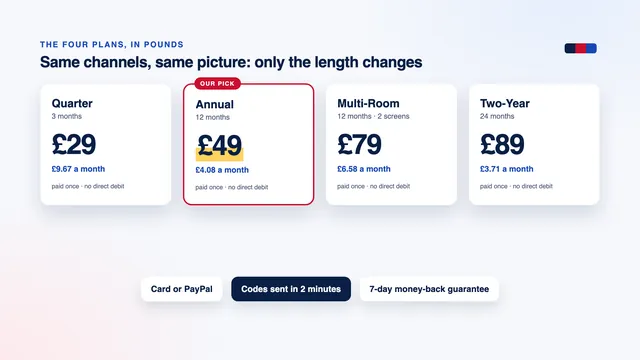
All four plans carry the same IPTV UK channels, library and picture quality; they differ only in length and in the number of screens. Compare them on the plan cards or, in more detail, on the IPTV UK plans page; our usual suggestion is the Annual plan, a full year at £49. Once your login arrives, the setup page shows where to type it on each device, and the IPTV UK 8K front page sums up everything else.
Frequently asked questions
How many IPTV UK channels are there?
More than 40,000 live channels from the UK and many other countries, plus a separate library of 120,000 films and series. The exact list changes over time as channels are added, renamed or moved, and your player always shows the current one.
Which channels are in 4K?
That depends on each source, and the list moves, so we do not publish a count or promise any channel in 4K. In the player, look for the 4K badge in the channel name; you need a 4K TV, a device that decodes HEVC and about 25 Mb/s to see it.
Why does this site not list channel names?
We describe the list by category rather than by name. Once you sign in, every name appears in the player, group by group, and the team can tell you before you order whether the category you care about is there.
Can I change the order of the categories?
Many players let you reorder favourites and hide groups; fewer let you rearrange the groups themselves. Putting your favourites at the top of the column is the quickest way to get the same result.
Will my favourites appear on my second TV?
No. Each device keeps its own list, so build one on every screen you use. With the Multi-Room plan, both screens can play at the same time.
Can I hide the channels from other countries?
Yes, in any player with a hide or manage-groups option: untick each country nobody watches and the column shrinks to the UK groups plus the ones you keep. A hidden group returns the moment you tick it again.
Is there a regional channel for my area?
The regional group gathers news and programmes for the nations and regions of the UK. Open it once after signing in to see what covers your area, and star it.