Guide
IPTV UK buffering: the checks that stop a frozen picture
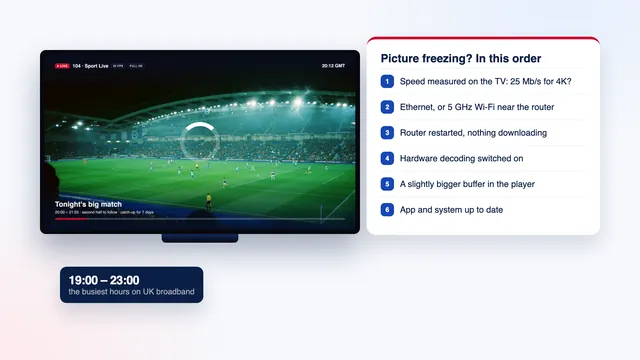
IPTV UK buffering usually starts inside the home, and the causes can be checked in a fixed order, from the free and quick to the ones that need a cable or an adapter. This guide follows that order, says what each check tells you, and ends with what to send our team if the picture still stops.
Why IPTV UK buffering happens
A live channel reaches your player as a steady run of small video segments, and the player keeps a few seconds of them in reserve: the buffer. When segments arrive more slowly than the picture plays, the reserve drains, the picture stops and the loading wheel turns while it refills.
Several servers share the load at our end during busy hours. Everything from your router onwards sits in your home, which is where most IPTV UK buffering starts and where the quickest fixes are.
If the player has never shown a picture, the login is the issue, so begin with the setup guide. The channels, films and series described on our IPTV UK home page arrive the same way on every screen, so these checks apply to a smart TV, a stick or a box alike.
Read the pattern before you change anything
- Every channel, every evening: the home connection. Start with step 1.
- Only after about 19:00: the evening peak. Steps 1 to 4 help, and step 6 is the safety net.
- One channel, while the others play: that source. Pick another quality version of it and tell us its name.
- Jerky movement with no wheel: not buffering at all, but a frame-rate or decoder matter (step 5).
Step 1: measure the speed on the TV or stick
A speed check on your phone flatters the result: the phone sits near the router and carries a newer Wi-Fi chip than most televisions. The TV stands against a wall or inside a cabinet, and that is the connection the picture uses.
Run the check on the screen you watch, from its network settings or with a speed-check app from the device’s own store. Do it in the afternoon, at about 20:00 and while the picture is freezing. The lowest result is the one that counts, because a stream needs a steady rate rather than a quick burst.
| Picture | Stable speed, one screen | Two screens at once | Also needed |
|---|---|---|---|
| HD | about 5 Mb/s | about 10 Mb/s | any current player |
| Full HD | about 10 Mb/s | about 20 Mb/s | 5 GHz Wi-Fi close to the router, or a cable |
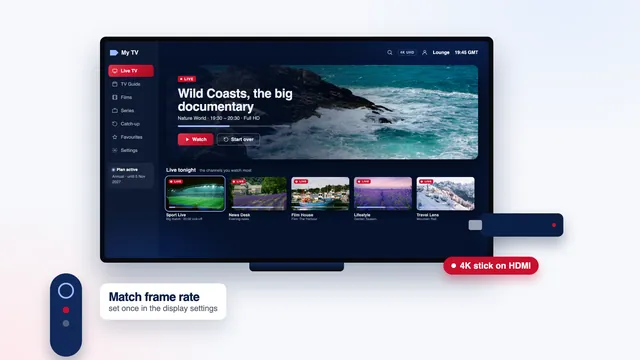
| 4K UHD | about 25 Mb/s | about 50 Mb/s | a 4K screen, an HDMI 2.0 (or newer) port and cable, hardware HEVC (H.265) decoding |
Pictures go up to 4K UHD (3840 × 2160) on the channels and titles produced in 4K, depending on the source, so the 25 Mb/s line only matters when you pick one of those.
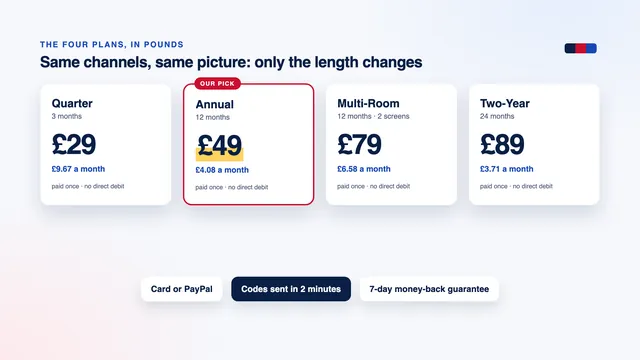
Count the rest of the household too: a game download, a cloud photo backup or a video call takes its share of the line. With the Multi-Room plan, one of the four plans on our home page, two screens draw on it at once, and the guide to watching on multiple devices explains how they are counted. If your lowest figure sits below the line for the quality you watch, steps 2 to 4 raise it; if it is well above, go straight to step 5.
Step 2: Wi-Fi in flats and terraced houses, 2.4 or 5 GHz
Most routers broadcast on two bands. 2.4 GHz reaches further and gets through brick better, but it has only a few channels that do not overlap. In flats or a terraced street, your TV shares them with every router behind the walls, and with the microwave and some baby monitors. The connection holds, yet its speed rises and falls all evening.
5 GHz has far more room and speed, and it fades quickly through walls and floors, so your neighbours’ signals barely reach you. It is the better band with the TV in the router’s room or one wall away. Two floors up, or beyond a chimney breast, it can drop below 2.4 GHz, and then a wire of some kind is the answer.
Check which band the TV is using
- Open the network settings on the TV or stick and look at the connected network; some show the band, others only the signal.
- If the router uses one network name for both bands, the TV chooses for itself and may cling to 2.4 GHz. Many routers let you give the 5 GHz band its own name in their settings page: connect the TV to that one.
- Make sure the device supports 5 GHz at all. Some older TVs and entry-level sticks only see 2.4 GHz, and then step 3 is the fix.
- Measure again on the TV, at the same hour as before, and compare.
Step 3: Ethernet, powerline adapters or mesh Wi-Fi
When Wi-Fi cannot hold the speed, carry the signal another way, starting with the most reliable.
An Ethernet cable
A cable from the router to the TV takes interference and distance out of the equation. A Cat 5e or Cat 6 cable is enough, and flat versions run neatly under a carpet edge or along a skirting board. Many TVs have an Ethernet port limited to 100 Mb/s, which sounds slow beside a gigabit router yet is four times what a 4K stream asks for.
Sticks have no socket, but several take a small adapter between the stick and its power supply: see the Firestick guide. Most Apple TV boxes have a port at the back (the Apple TV guide says why to use it), and the guide to what IPTV costs shows what these extras add to the budget.
Powerline adapters
A powerline kit is a pair of plugs that carry the network through your mains wiring: one beside the router, joined to it by a short cable, the other beside the TV. They suit a terraced house with the router by the front door and the TV in the back room.
- Plug each adapter straight into a wall socket: extension leads and surge-protected strips filter the signal.
- Adapters on the same circuit usually do best; older wiring and long runs lower the result.
- Ignore the big number on the box, which is a shared theoretical maximum, and measure on the TV once connected.
Mesh Wi-Fi
A mesh system swaps the single router signal for a main unit and one or more satellites that relay it. Put the first satellite roughly halfway between the router and the TV, in the open. If a satellite has an Ethernet port, a short cable from it to the TV gives you the best of both.
Step 4: restart the router and give it a better spot
A router that has run for weeks can hold on to stale connections, and a clean restart clears them. The order matters:
- Switch the router off at the wall and leave it for 30 seconds.
- Switch it back on and wait until its lights settle, usually two or three minutes.
- Unplug the TV or stick from the power for 30 seconds as well; standby is not a restart.
- Open the player, load a channel you know well and watch it for ten minutes.
Placement does as much as any setting. A router on the floor behind the sofa, in the cupboard under the stairs or behind a metal TV bracket loses much of its reach. Raise it to shelf height, in the open and as central as the line allows, away from fish tanks, mirrors and the microwave. If it cannot move, the options in step 3 bring the signal to the TV instead.
Step 5: the player’s buffer size and its decoder
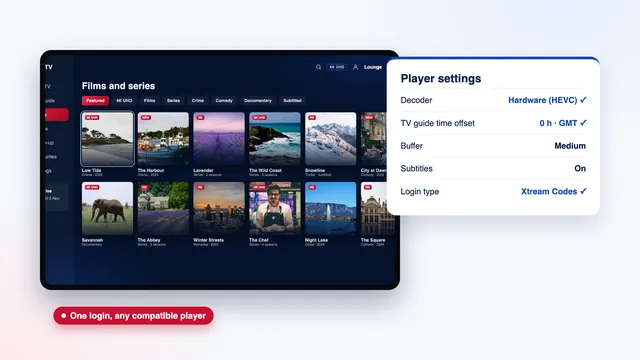
Once the connection is sound, two settings inside the player decide how it copes with small drops. Their names vary from app to app, and our comparison of the players that read our access shows the main options.
Buffer size
Most players let you set how much of the stream they keep in reserve, usually under Settings, then Player or Playback, with a name such as buffer size, buffering or cache. Raise it one step at a time, from small to medium or medium to large, and watch the same channel for a quarter of an hour after each change.
A bigger buffer rides out short dips, at a price: channels take a moment longer to start and the picture sits a little further behind live. Set too high on a stick with little memory, it makes the menus sluggish. In VLC on a computer, the matching setting is network caching, set in milliseconds among the advanced preferences.
Hardware or software decoding
Hardware decoding hands the work of unpacking the picture to the video chip built for it, which copes with HEVC (H.265) and 4K without strain. Software decoding uses the main processor instead, and a modest stick running a 4K channel that way will stutter however fast the line is.
Players made for Android TV and Fire TV often show the choice as HW, HW+ or SW. Start with hardware. Move a channel to software only if hardware gives green patches, a black picture with sound, or a frozen frame while the audio carries on.
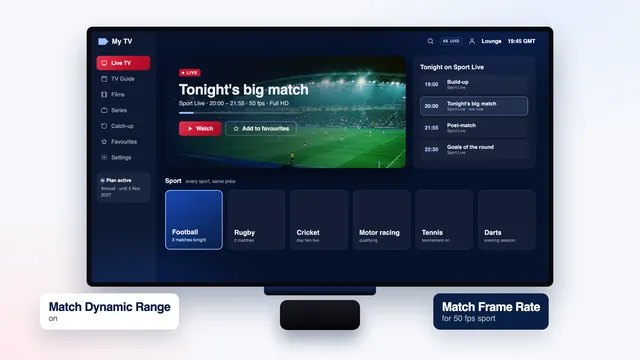
Jerky movement without a loading wheel means the TV’s refresh rate and the channel’s frame rate do not match, which shows most on sport at 50 frames per second; the guide to live sport at 50 fps covers that side. On Android-based sticks, clearing the player’s cache now and then and keeping some storage free also helps.
Step 6: drop to Full HD in the evening peak
In the UK, the busiest hours run roughly from 19:00 to 23:00, with weekends and big match nights busier still. Most homes on your street are streaming then, so the share of the local network reaching your router shrinks even when nothing indoors has changed. IPTV UK buffering that appears at 20:00 and clears after 23:00 points to that peak rather than to your own Wi-Fi.
Many channels appear in the list in more than one quality, marked HD, FHD or 4K. A 4K version needs about 25 Mb/s held steadily; its Full HD twin needs about 10. When the 4K one stalls during a match, the Full HD one is far more likely to play on, and from the sofa a steady Full HD picture beats a 4K one that stops every few minutes. Go back to 4K once the evening quietens down.
All four plans carry the same channels, library and picture quality (the plans page sets them out), so a bigger order will not cure evening stalls.
Cause and fix: the quick table
Match what you see on screen to the closest line, then begin with the fix in the last column.
| What you see | Likely cause | Fix to try first |
|---|---|---|
| The wheel turns every few minutes on every channel | Weak or crowded Wi-Fi, often 2.4 GHz | 5 GHz close to the router, or a cable |
| Smooth in the afternoon, stalls after 19:00 | Evening peak, or other heavy use in the home | The Full HD version of the channel; pause big downloads |
| One channel stops, the rest play well | That channel’s source | Another quality version, then tell support |
| 4K stalls, Full HD plays smoothly | Under 25 Mb/s on the device, or software decoding | Hardware decoder, a cable, an HDMI 2.0 port |
| Jerky sport but no loading wheel | Frame rate and refresh rate do not match | The frame-rate setting of the device |
| Picture freezes while the sound carries on | The decoder | Switch between hardware and software |
| Fine at first, worse after an hour | A hot stick or full storage | Cooler spot, cleared cache, a restart |
| Both screens stall when two TVs watch | Line too slow for two streams | A cable for one TV, Full HD on the other |
When to contact support, and what to send
Contact us when IPTV UK buffering carries on after steps 1 to 5, on a cable or on 5 GHz Wi-Fi near the router, with a good speed on the TV. Restart the router and the player once more first. Our team answers 24/7 on WhatsApp and email, in English, and a complete first message saves a round of questions:
- your username (the password is not needed);
- the device and its model, plus the player and its version;
- how the device connects: cable, 5 GHz, 2.4 GHz, powerline or mesh;
- the lowest speed measured on the device, and when;
- the date and UK time of the freezes, and the channel names as they appear in your list;
- whether library films stall too, or live channels only;
- a short phone video of the screen, and the steps from this guide you have already tried.
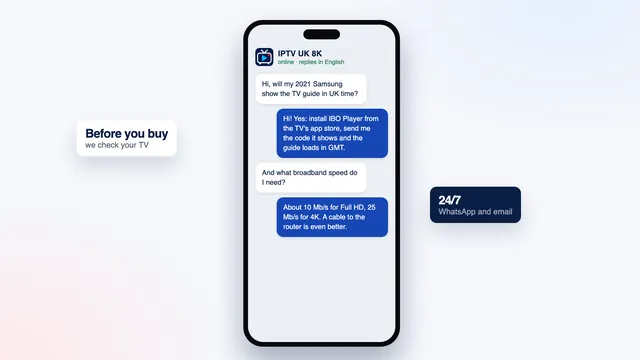
Write through the contact page or send the team a WhatsApp message. Never post your login in a public group or forum: a login shared outside the home can be suspended.
If nothing displays at all despite our help, the 7-day guarantee applies. It does not cover a line that turns out too slow for 4K when the speeds above were explained before you ordered.
Frequently asked questions
Why does IPTV UK buffering get worse in the evening?
Between about 19:00 and 23:00, most homes on your street stream at once, so less of the local network reaches you. Weekends and big match nights are the busiest. Use a cable or 5 GHz Wi-Fi, and move a stalling 4K channel to its Full HD version until the peak passes.
What speed do I need to stop the picture freezing?
About 5 Mb/s for HD, 10 for Full HD and 25 for each screen watching 4K, held through the evening. Measure it on the TV or stick rather than your phone, and go by the lowest result.
Will a bigger buffer stop buffering?
It smooths out short dips, so it helps on a connection that is mostly sound. It cannot make up for a line that is too slow all evening, and a very large buffer makes channels slower to start.
Is Wi-Fi or Ethernet better for watching live channels?
Ethernet is the steadiest, and 5 GHz Wi-Fi in the router’s room comes close. 2.4 GHz is the weakest choice in flats and terraced streets, where neighbouring routers crowd it, and powerline or mesh bridges the gap when a cable cannot reach.
Why does one channel freeze while the others play?
Then your connection is fine and the issue lies with that channel’s source. Pick its other quality version in the list, and if it still stops, send our team the channel name exactly as shown with the time it happened.
Is a picture that runs behind live TV a sign of buffering?
No. Live channels normally run from a few seconds to about 30 seconds behind the broadcast, and a larger buffer adds a little more. It only counts as buffering when the picture stops and the loading wheel appears.